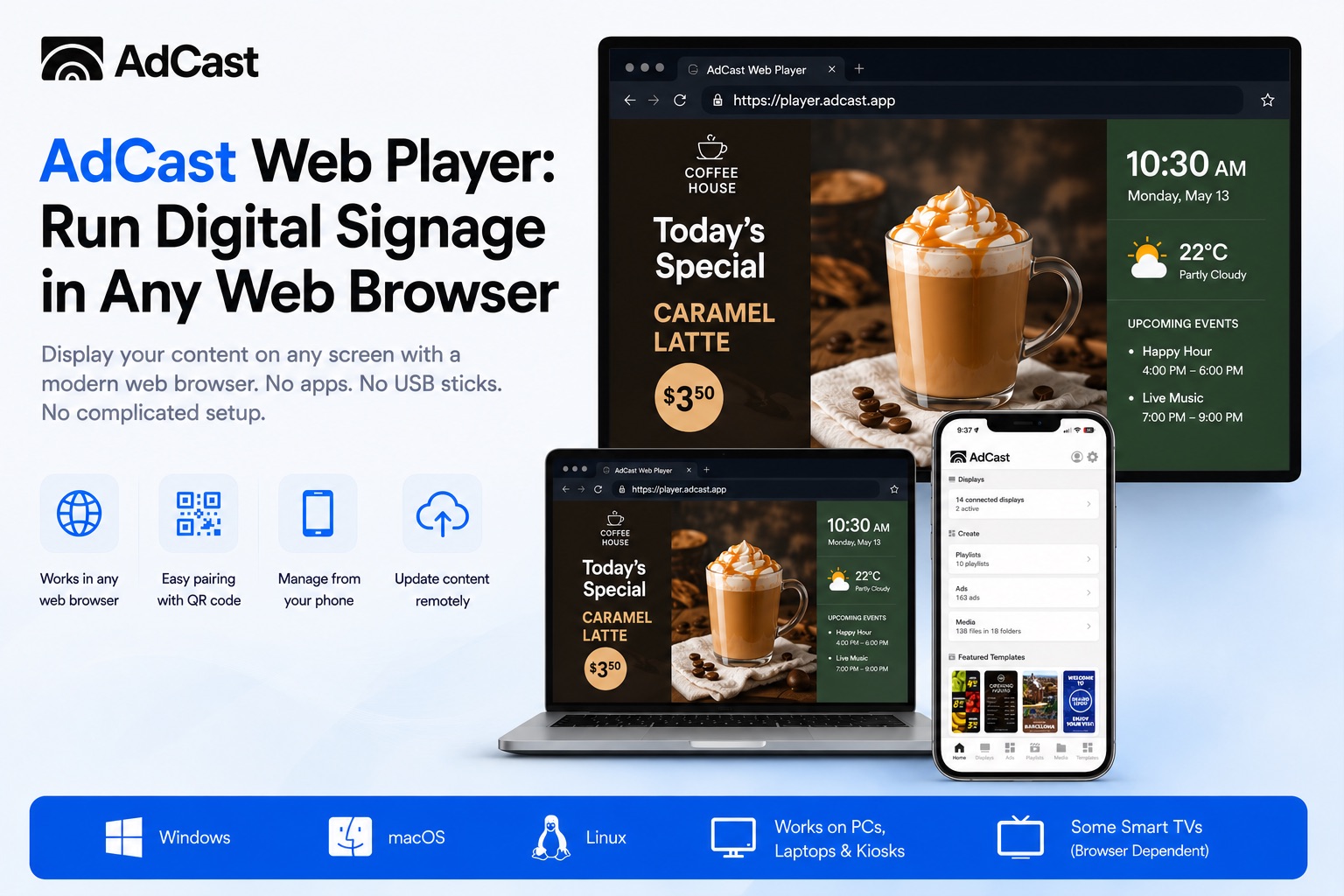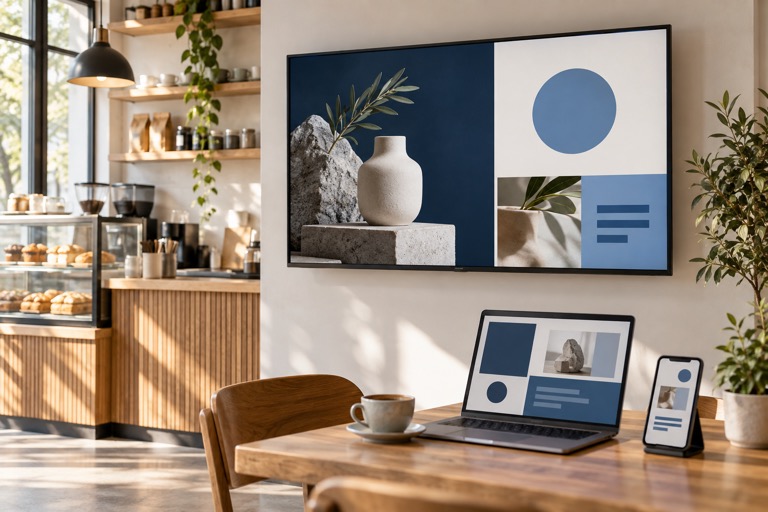
Yes, you can turn a regular TV into digital signage. In most cases, you only need a compatible TV or streaming device, an internet connection, and digital signage software such as AdCast.
That does not mean every television uses exactly the same setup. A TV with a supported app platform may run the player directly; a standard TV with HDMI can use an external player. Once the screen is connected, the useful part is not the television itself-it is being able to change promotions, menus and information without carrying a USB drive to every location.
Can You Use a Regular TV for Digital Signage?
Many businesses can reuse a TV they already own. The important question is not whether it is a consumer or commercial display, but how it will run the signage player and how reliably it suits the intended use.
Smart TVs vary by operating system, so a smart-TV label alone is not a guarantee of app compatibility. Android TV and Google TV are convenient where they can install AdCast Player directly. Fire TV and Fire TV Stick devices offer another supported route. A regular television with an HDMI input can also work with a compatible external Android TV or Fire TV device.
Commercial displays can be a better fit where a screen will run for long hours, needs higher brightness or will be installed in a demanding public setting. For a café counter, salon, small shop or office, an existing TV plus the right player may be enough. Match the screen orientation, size, placement and operating hours to the job before choosing hardware.
What Do You Need to Turn a TV Into Digital Signage?
Digital signage is a small system rather than a file on a TV. It has five straightforward parts:
- TV or display: the screen people see.
- Player or compatible TV app: the screen-side software that receives and plays content.
- Internet connection: used for pairing, publishing and remote updates.
- Digital signage software: the place where you manage media, playlists, displays and schedules.
- Content: images, videos, menus, promotions or information made for the screen.
Think of the player as the connection between the TV and your digital signage content management workspace. It plays the assigned playlist while the workspace is where you decide what each display should show. That separation is what lets a manager update a screen without touching its remote control.
How to Turn Your TV Into Digital Signage
- Choose the TV or display. Use a supported Android TV, Google TV or Fire TV device, or connect compatible player hardware to a TV through HDMI.
- Install or open AdCast Player. On supported devices, install the player from the appropriate app store and open it on the screen.
- Connect the display to AdCast. The player shows a QR code. Scan it from the AdCast app to pair the display with your account.
- Add your content. Upload images or videos, or create material in AdCast. Keep the aspect ratio consistent with the screen for the cleanest result.
- Create a playlist. Arrange the media in the order you want it to play and set the duration for each item.
- Assign the playlist to the display. Select the paired screen and publish the playlist to it.
- Schedule and update remotely. Use the workspace to change playlists or set content for different times, then publish the update without visiting the TV.
Watch the setup in action
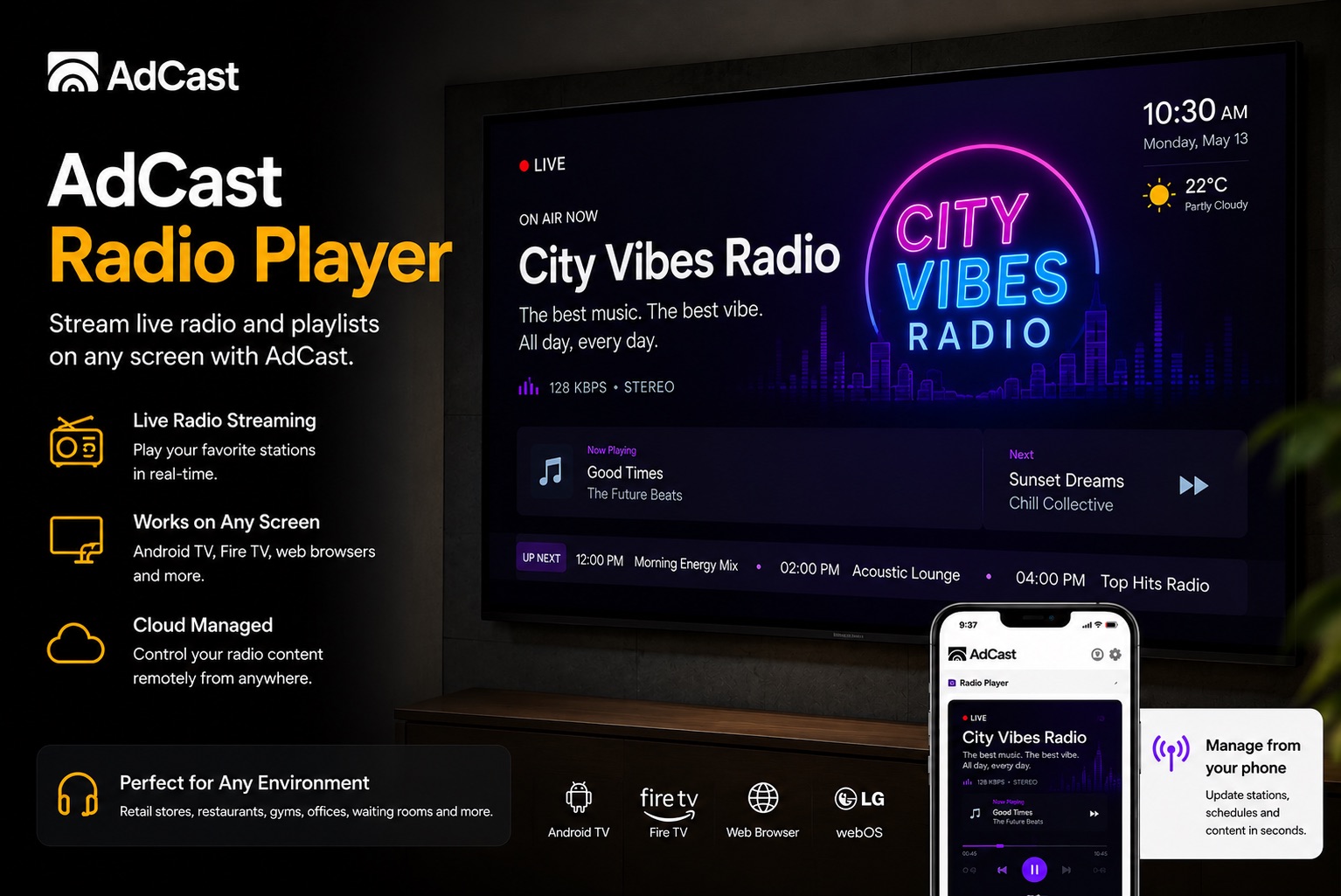
This workflow works just as well for one reception screen as it does for a group of displays. For more detail on the screen-side software, see the AdCast digital signage player overview.
Android TV Digital Signage
Android TV and Google TV are practical options because they combine the television interface and the player environment in one device. On supported hardware, AdCast Player runs directly on the TV, so there is no separate proprietary signage box to mount or maintain.
Before committing to a rollout, check that the model can install the player and that it has stable connectivity. A TV used for long daily hours should also have suitable power and display settings. Our Android TV digital signage guide covers the platform choice in more detail.
Fire TV Digital Signage
Fire TV is another way to give a screen a connected signage player. AdCast supports Fire TV and Fire TV Stick devices running Fire OS, which can be useful when a business already uses that hardware or wants to add a compact device to an HDMI TV.
Install AdCast Player, open it and pair the screen with the on-screen QR code. Do not assume every television is a Fire TV simply because it is a smart TV; check the operating system and app availability first. The Fire TV digital signage guide explains the supported workflow.
Do You Need a Dedicated Digital Signage Player?
Every screen needs a player, but that does not always mean buying a dedicated proprietary box. A compatible Android TV or Fire TV can run player software directly. That keeps the setup compact and can reduce extra hardware where the existing screen is suitable.
A standard HDMI TV needs an external compatible device to run the player. That can make sense when you want to reuse a display that has no supported app platform, or when the player needs to be selected separately from the screen. In either case, choose the setup based on compatibility, operating hours, connectivity and the support you need-not only on the price of the TV.
What Can You Display on a Digital Signage TV?
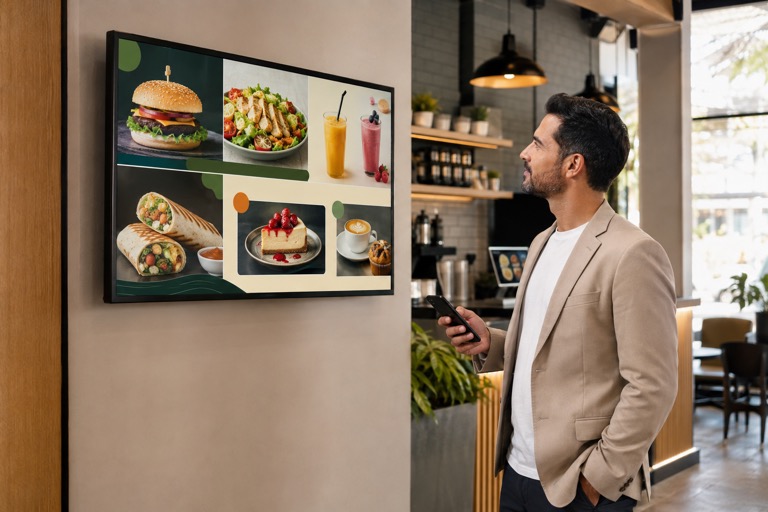
A signage TV can display more than a looping slideshow. Useful content is usually short, readable from a distance and tied to what people need at that moment. Examples include promotions, images, videos, digital menus, price lists, product offers, announcements, welcome screens, schedules, guest information, QR codes and branded content.
The same screen can serve different purposes during the day. A restaurant might show breakfast items in the morning and a promotional menu later; a gym can alternate class schedules and membership offers. Explore examples for restaurants and cafés, retail stores, hotels, gyms, healthcare and waiting rooms.
Can You Manage Digital Signage Remotely?
Yes. Cloud digital signage means you upload or create content once, manage it from the workspace, assign it to displays or playlists, and publish updates through the internet. The screen does not need someone standing beside it for each change.
With AdCast, media, ads, playlists, schedules and paired displays are managed from the same workflow. That is especially helpful when a price changes, a campaign ends or a screen needs different local information. Read more about cloud digital signage software and how a CMS keeps content organized.
Can You Manage Multiple TVs?
Yes. Start with one screen, then add displays as your needs grow. Centralized management lets you assign one playlist to several screens or use different playlists for a storefront, counter, waiting area or separate location.
This does not require every screen to show identical content. A retailer can keep a shared campaign across stores while giving each location its own opening-hours message. A hospitality team can use a welcome screen in the lobby and guest information elsewhere. The important practice is to name displays clearly and organize playlists around the audience and location.
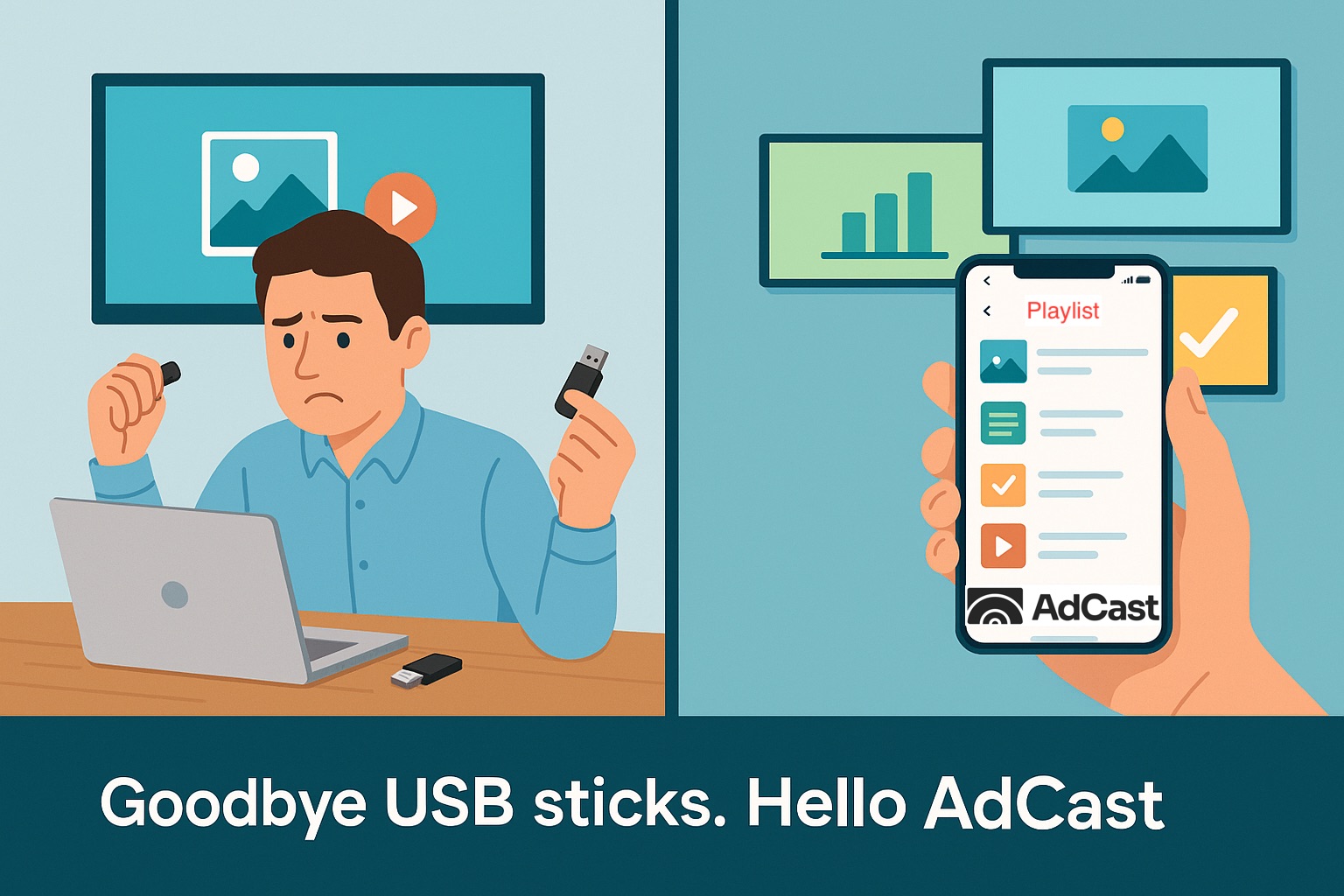
Digital Signage vs USB Stick
| USB updates | Cloud digital signage |
|---|---|
| Requires physical access to replace content. | Lets you publish updates remotely. |
| Updates are manual and easy to miss across locations. | Keeps media and playlists in a centralized workspace. |
| Becomes harder to coordinate as more TVs are added. | Can assign playlists and schedules to multiple displays. |
| Is simple for an occasional, single-screen change. | Is more useful for regular updates and managed playback. |
A USB stick can be adequate for a static screen that rarely changes. As soon as messages change frequently or several TVs are involved, remote management removes repetitive visits and gives you a clearer view of what each display is meant to show.
How Much Does TV Digital Signage Cost?
The cost has two parts: the display/player setup and the software subscription. If you already own a suitable TV, you may only need compatible player hardware or a supported TV platform, plus an internet connection and the software plan. A commercial display, installation work or a larger multi-screen deployment can add different costs depending on the situation.
AdCast pricing is maintained on the pricing page rather than repeated in articles, so you can check the current plan and display count in one place. See AdCast pricing before planning a rollout.
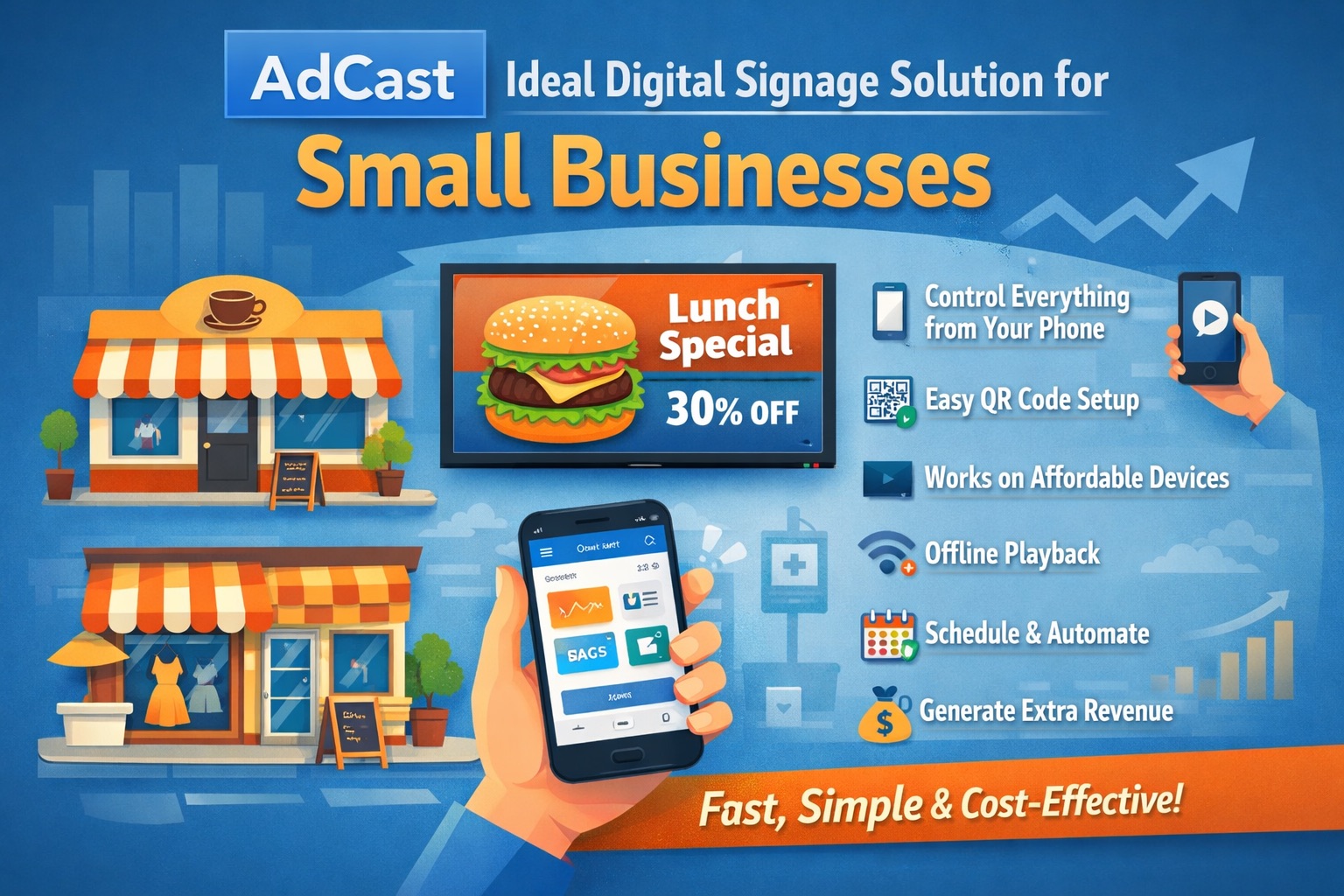
Digital Signage for Small Businesses
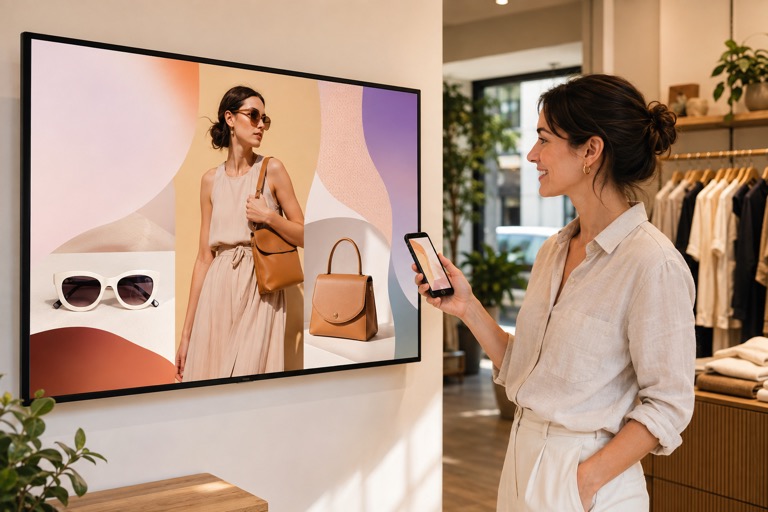
Digital signage is useful wherever information changes often and should be visible without staff repeating it. Cafés and restaurants can show menus and specials; retail shops can highlight offers; salons can show services; gyms can display class schedules; clinics and waiting rooms can share helpful information; hotels can show guest notices; and offices can communicate internal updates.
Begin with one useful screen and one clear content goal. A small, well-managed playlist is often more effective than trying to fill every moment with messages. As the workflow becomes routine, add screens or locations while keeping the content organized around each audience.
How to Get Started with AdCast
Choose a supported Android TV or Fire TV setup, install and open AdCast Player, then pair the display by scanning the QR code from the AdCast app. Add images or video, create a playlist, assign it to the display and publish it. From there, use the workspace to make remote updates and manage more screens when you need them.
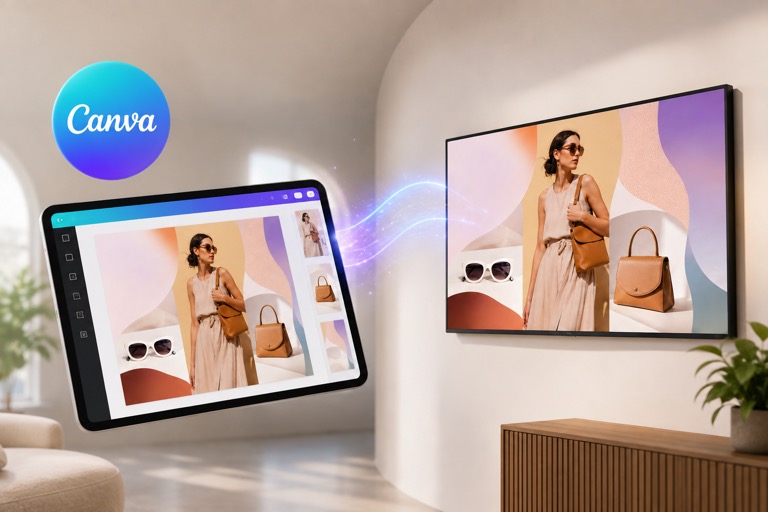
If your content is created in Canva, you can also follow the Canva digital signage workflow to move a finished design into AdCast and publish it to a paired display.
Frequently Asked Questions
Can I use a normal TV for digital signage?
Yes. A normal TV can work with a compatible built-in platform or an HDMI-connected player. Check the TV and player compatibility before setting it up.
Can I use Android TV for digital signage?
Supported Android TV and Google TV devices can run AdCast Player directly, which makes them a convenient screen-side player option.
Can I use Fire TV for digital signage?
AdCast supports Fire TV and Fire TV Stick devices running Fire OS. Confirm app availability on the device you plan to use.
Do I need a digital signage player?
Yes, every signage screen needs player software or a player device. A compatible Android TV or Fire TV can run the player directly; an ordinary HDMI TV needs compatible external hardware.
Can digital signage work without an internet connection?
Internet is needed for pairing and updates. After media has synchronized, locally cached content on a supported player can continue playing during an interruption, but new changes wait until the connection returns.
Can I manage multiple TVs remotely?
Yes. You can manage displays, playlists and published changes from one AdCast workspace, with content assigned to the screens that need it.
Can I use digital signage in a small business?
Yes. It is practical for cafés, restaurants, shops, salons, gyms, clinics, hotels, offices and waiting rooms that need to show current information.
How do I update content on a digital signage TV?
Upload or create media in AdCast, add it to a playlist, assign it to the paired display and publish or schedule the update remotely.