Import and Manage Media
Import photos and videos into AdCast, organize them in folders, and use Canva designs in your digital signage ads.
Import and manage media
The Media library is where you store the images and videos used in your ads.
Browse your media
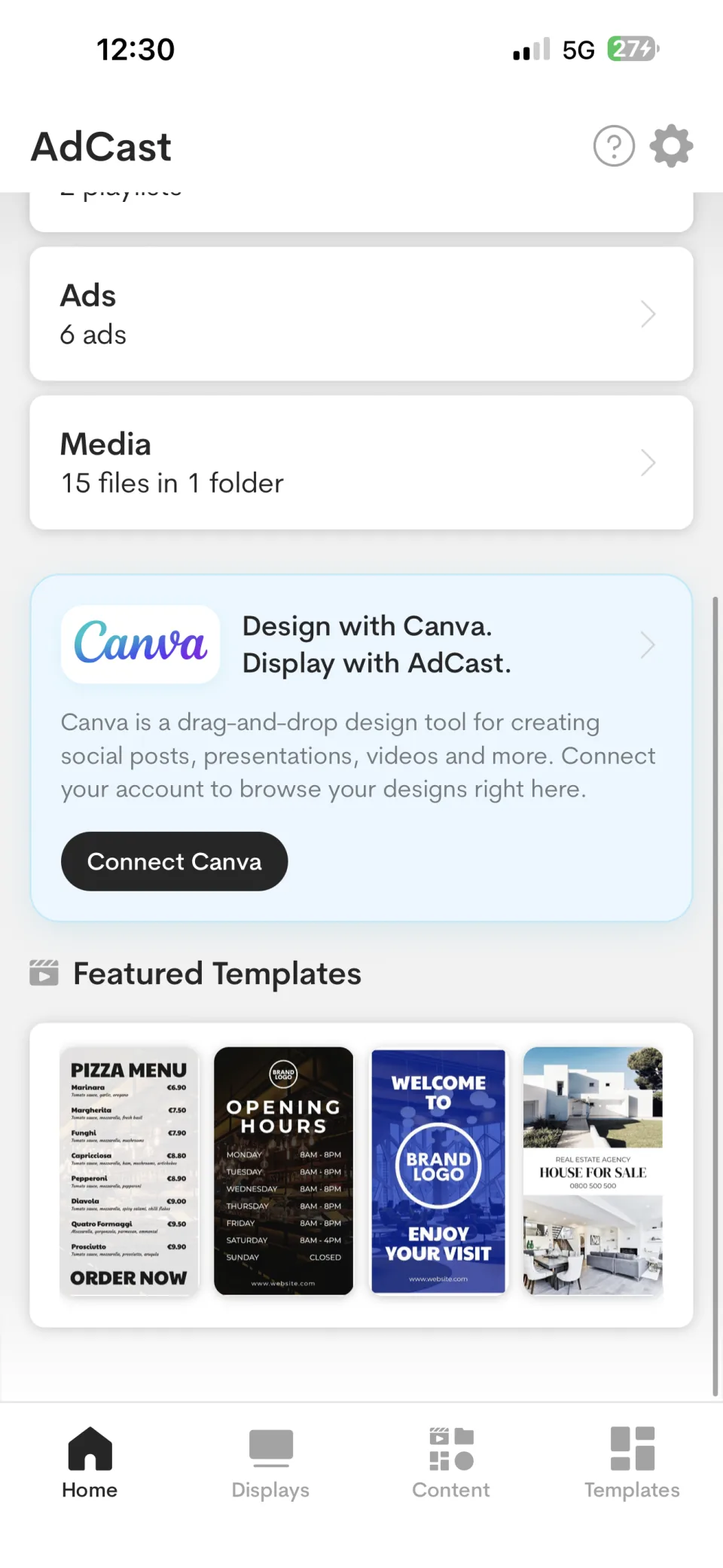
Open Media from the Home screen or the Content tab to browse imported items and folders.
Import an image or video
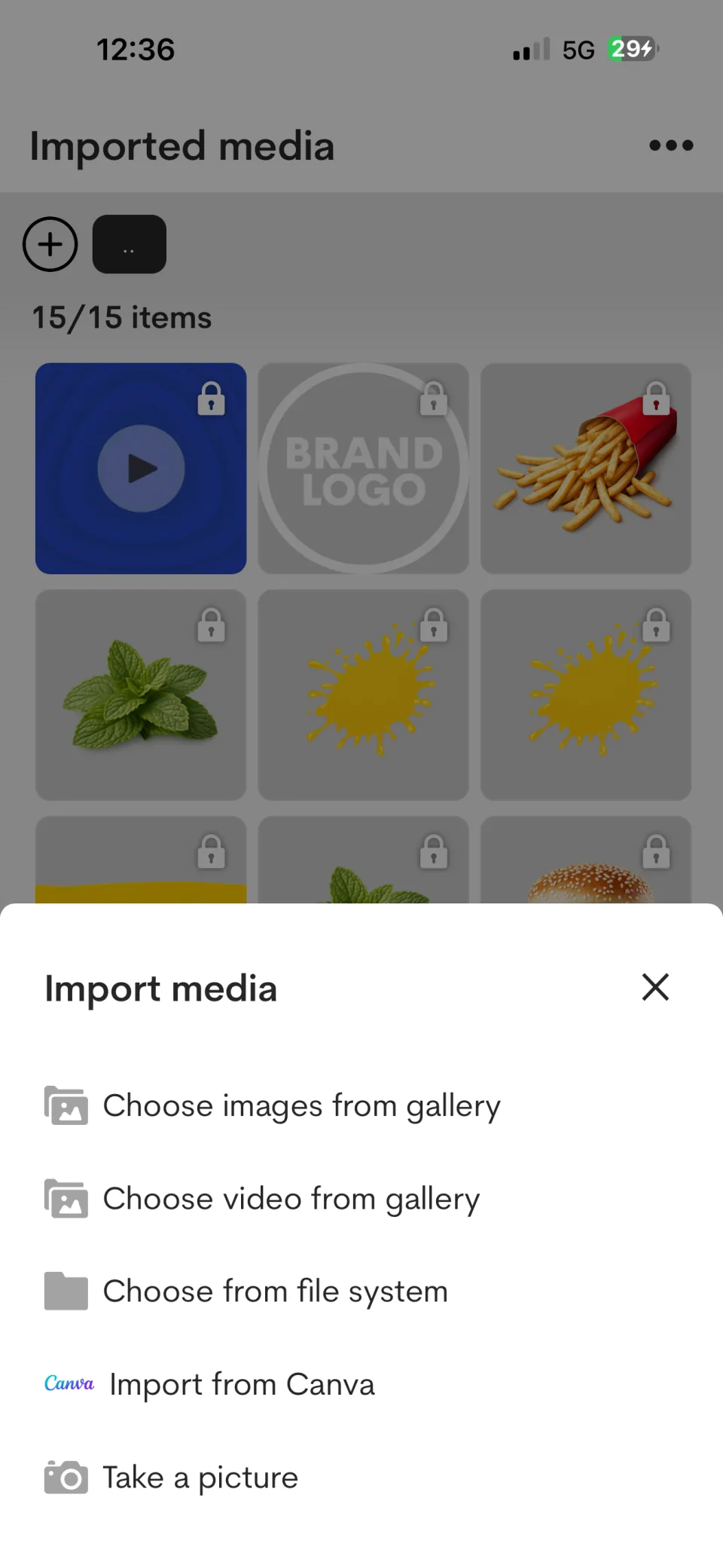
Tap the + button, then choose whether to import an image, video, file-system item, Canva design, or a new photo.
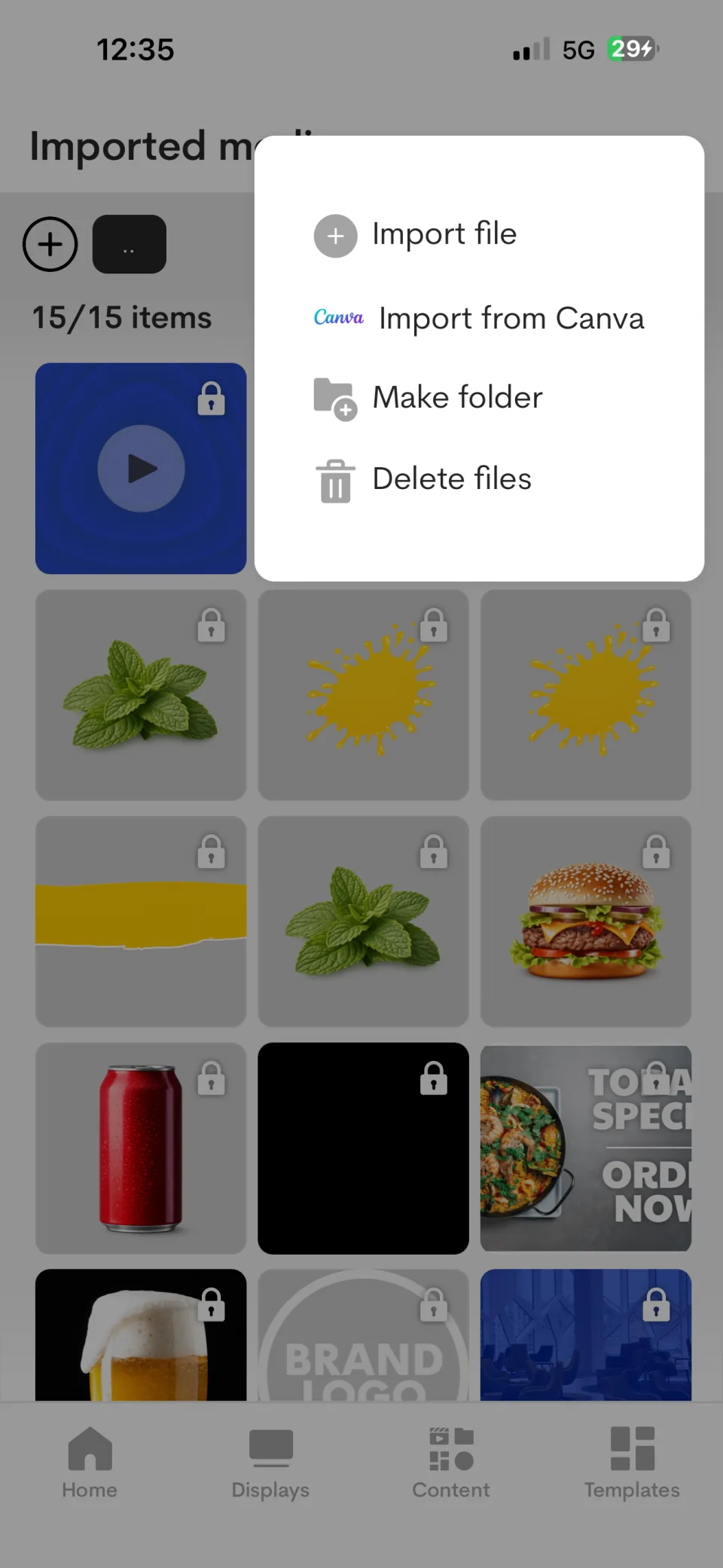
You can also open the overflow menu to import a file, connect Canva, or create a folder.
Organize media in folders
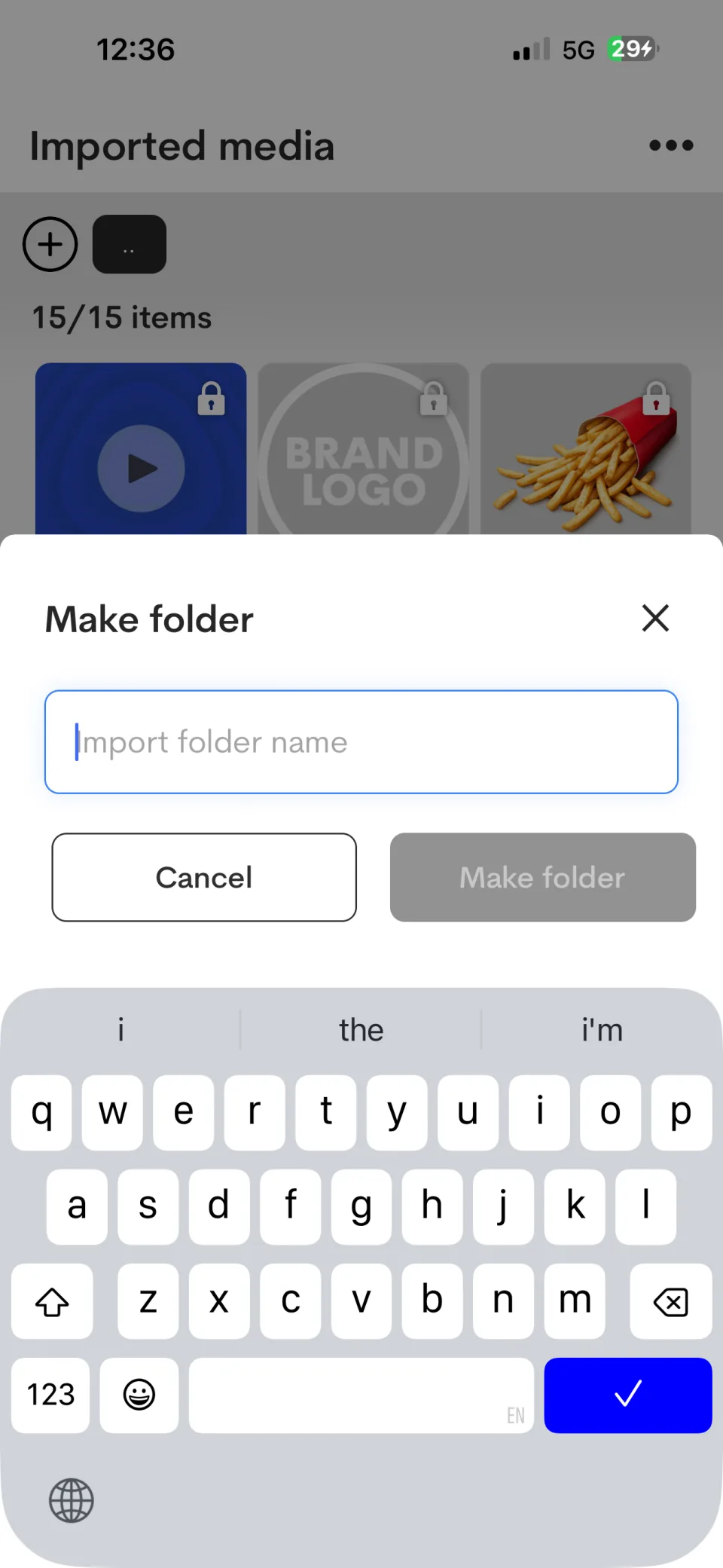
Choose Make folder, enter a clear folder name, and save it before importing related files into that folder.
Use Canva designs
Select Import from Canva and connect your Canva account. You can then browse designs and add them to AdCast as content.
Next steps
Use the imported media in a new or existing ad. See Create ads on iPhone for the editor workflow.
Create Digital Signage Ads on Your Phone
Learn how to design ads, add images, videos, text and widgets, and manage digital signage content with the AdCast mobile app.
How to Create Digital Signage Ads on iPhone
Step-by-step guide to designing digital signage ads on an iPhone with AdCast, adding them to playlists and publishing to a TV.