How to Create Digital Signage Ads on iPhone
Step-by-step guide to designing digital signage ads on an iPhone with AdCast, adding them to playlists and publishing to a TV.
How to create digital signage ads on iPhone
You can create an advertisement on your iPhone, add it to a playlist and manage playback on a paired Android TV or Fire TV using AdCast. The phone is the editing and management device; the TV runs AdCast Player.
Before you start
- Sign in to the AdCast mobile app on your iPhone.
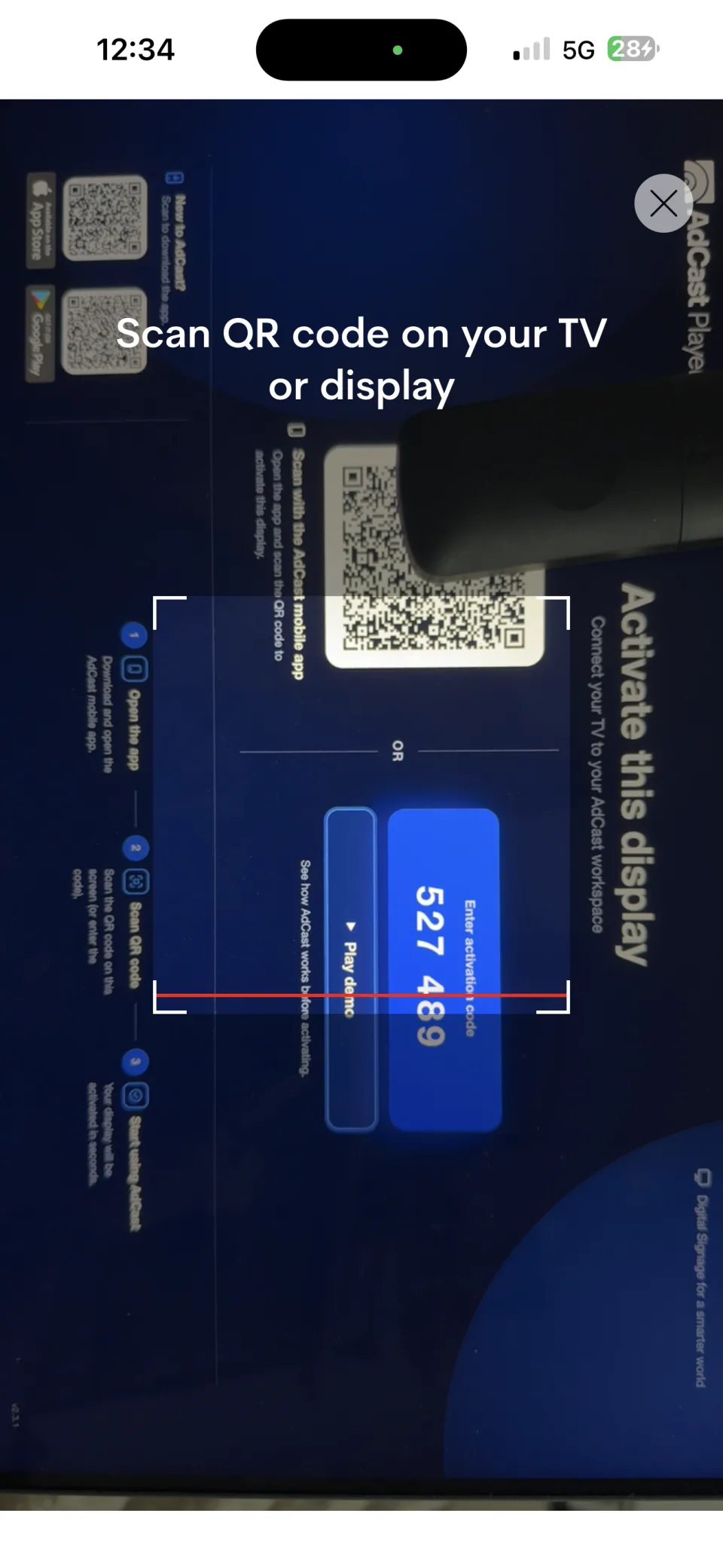
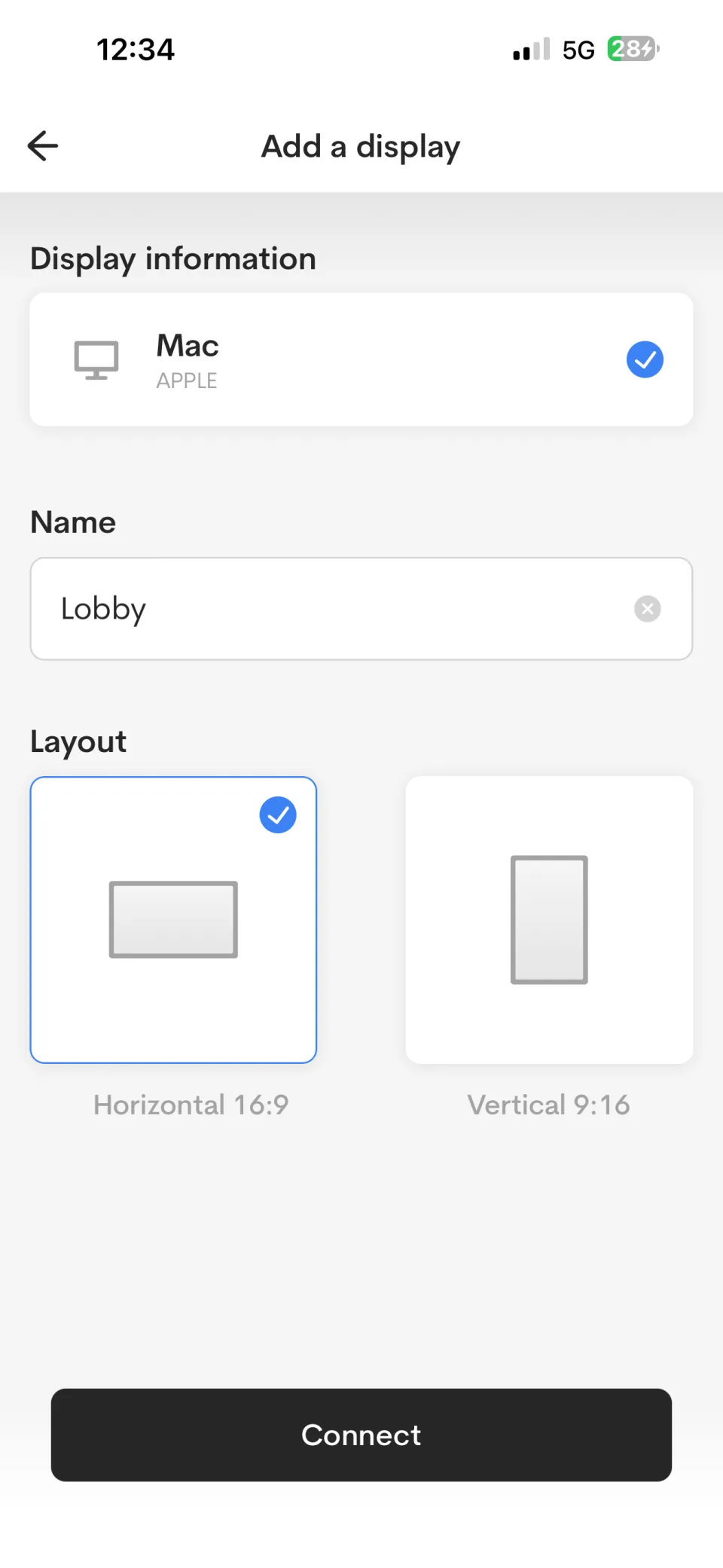
- Have a supported screen running AdCast Player. See Connect Android TV if you have not paired a screen yet.
- Prepare any images, videos, text or prices you want to include.
Step 1: Choose a design
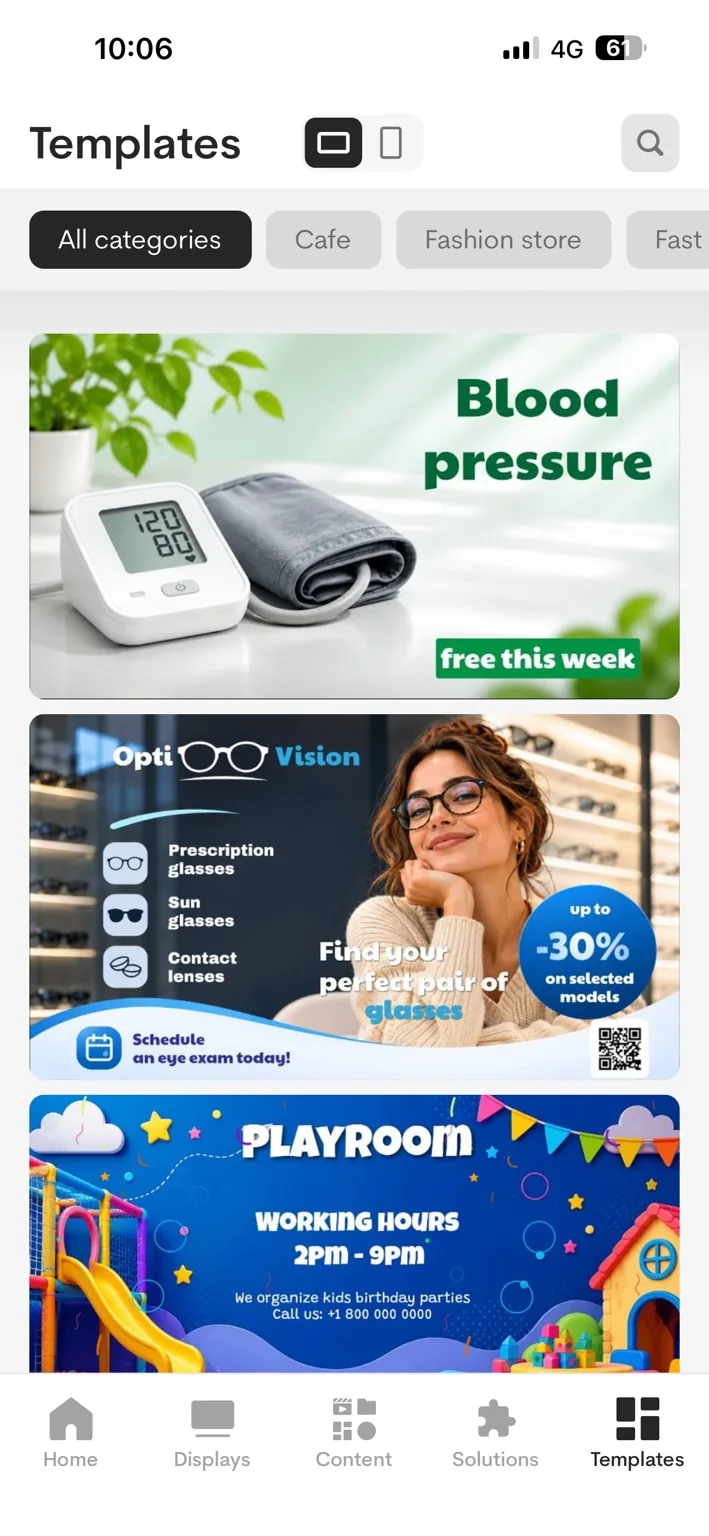
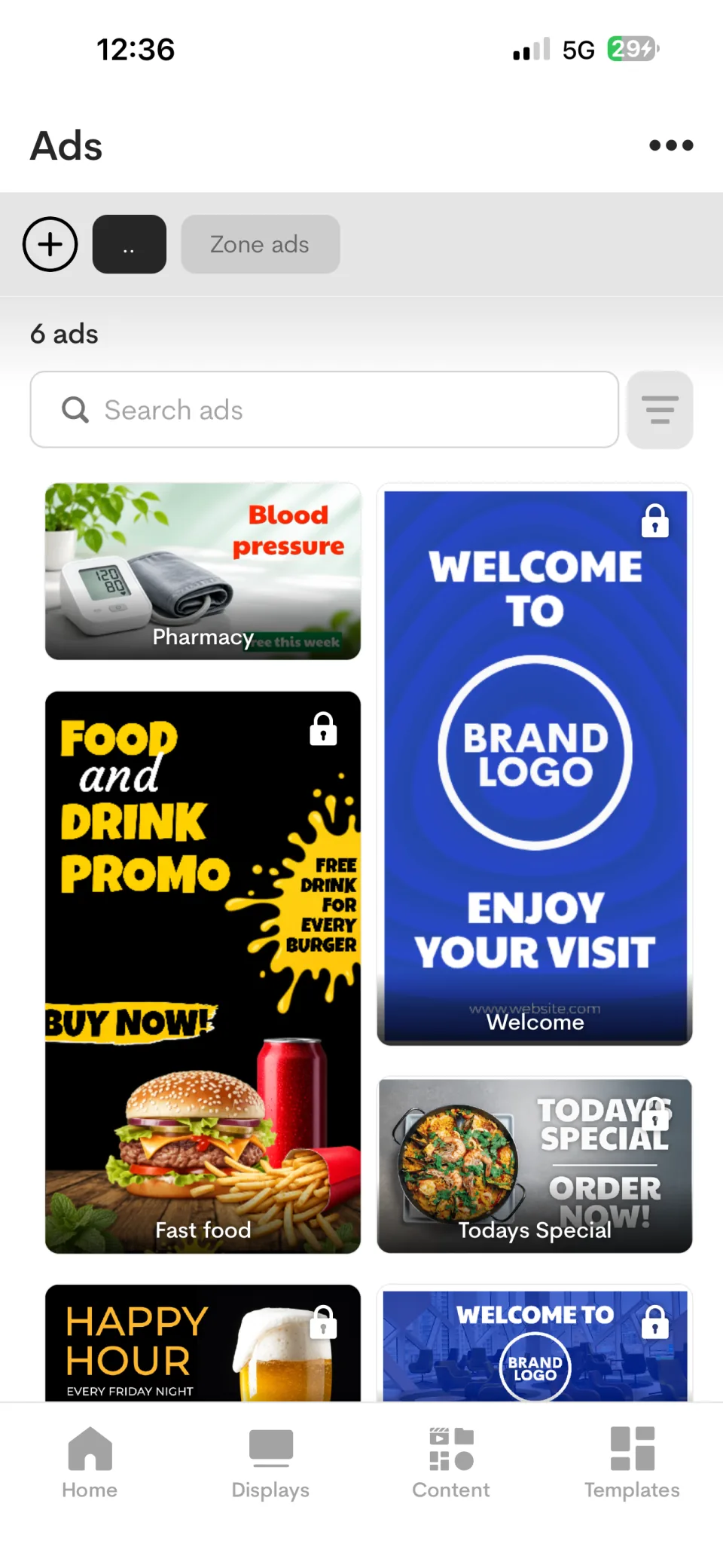
Open Ads, then select an existing ad or create a new one. Choose the orientation that matches your screen.
Step 2: Add your content
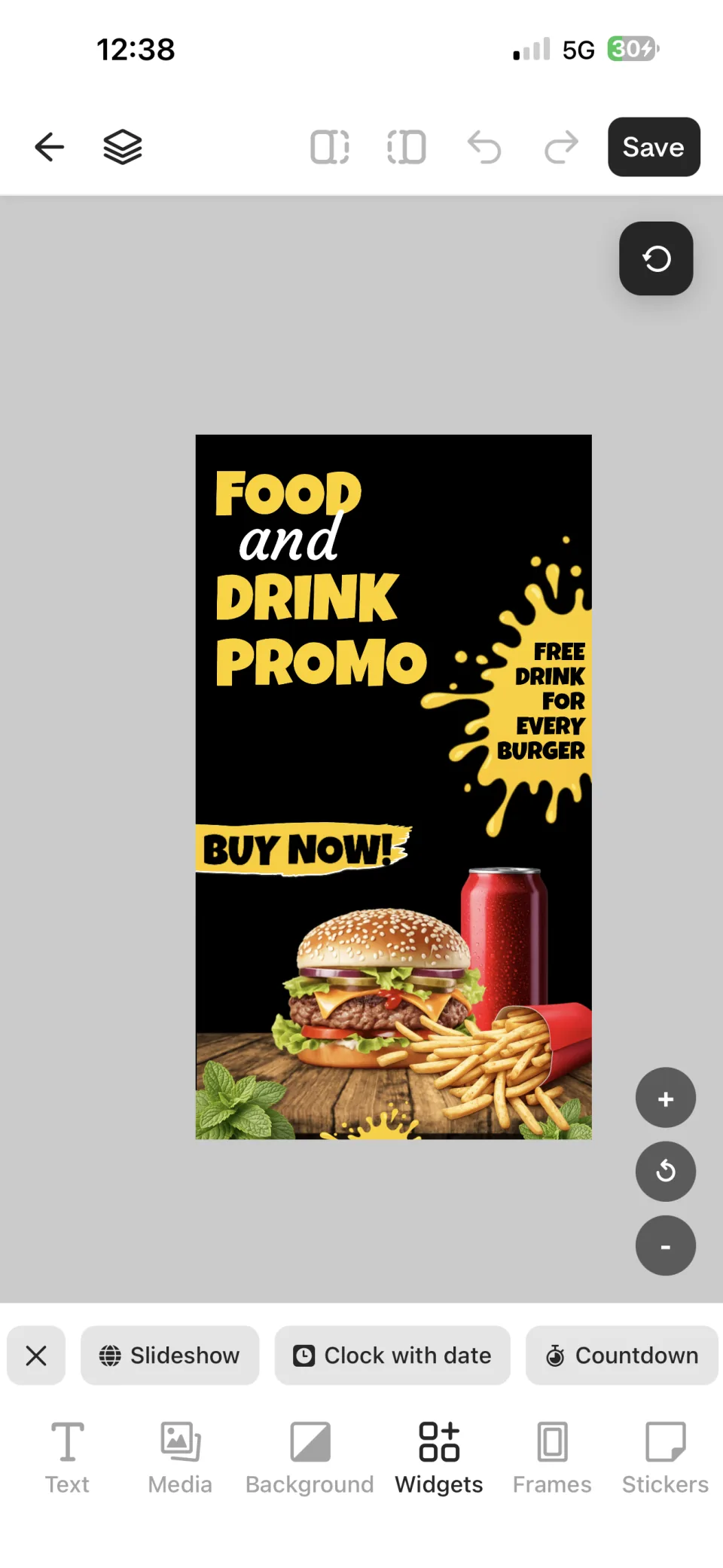
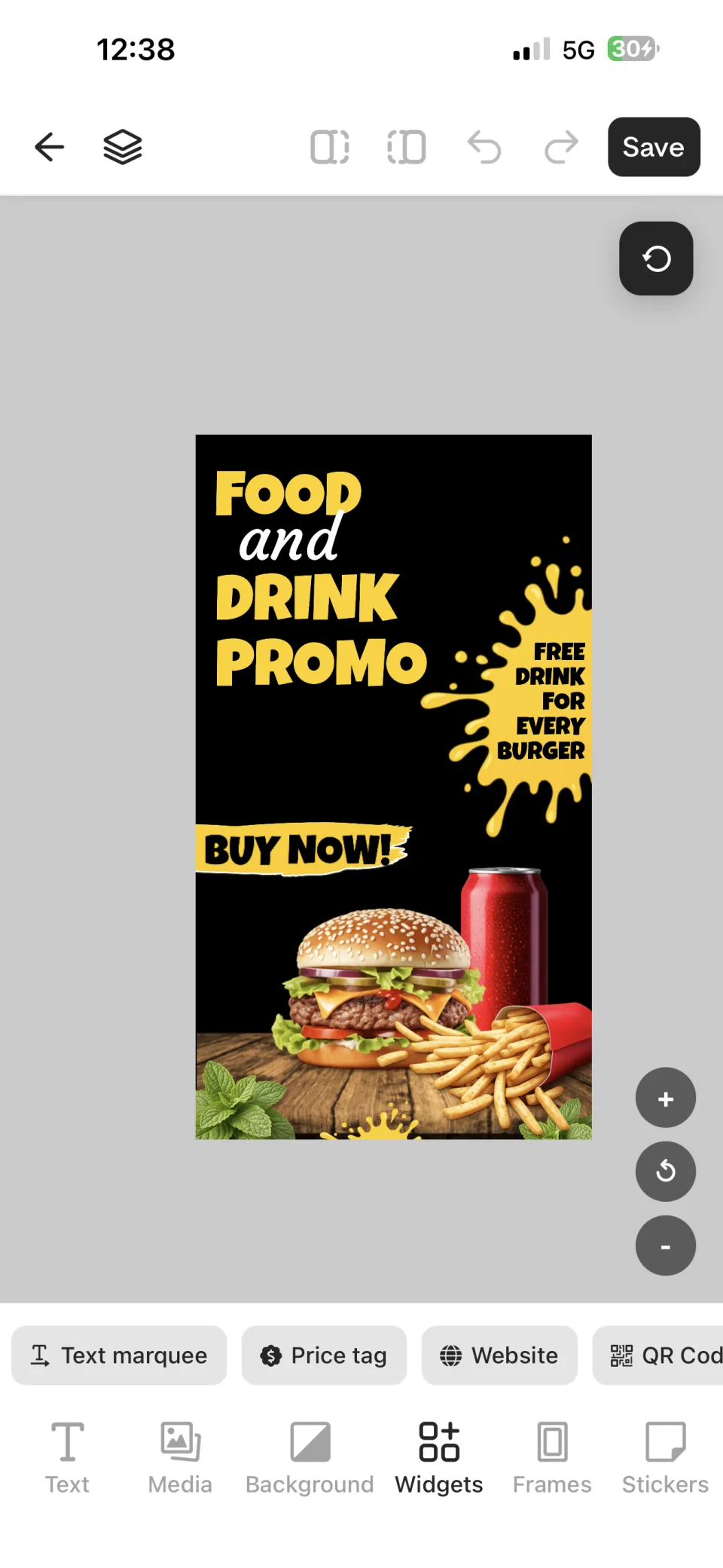
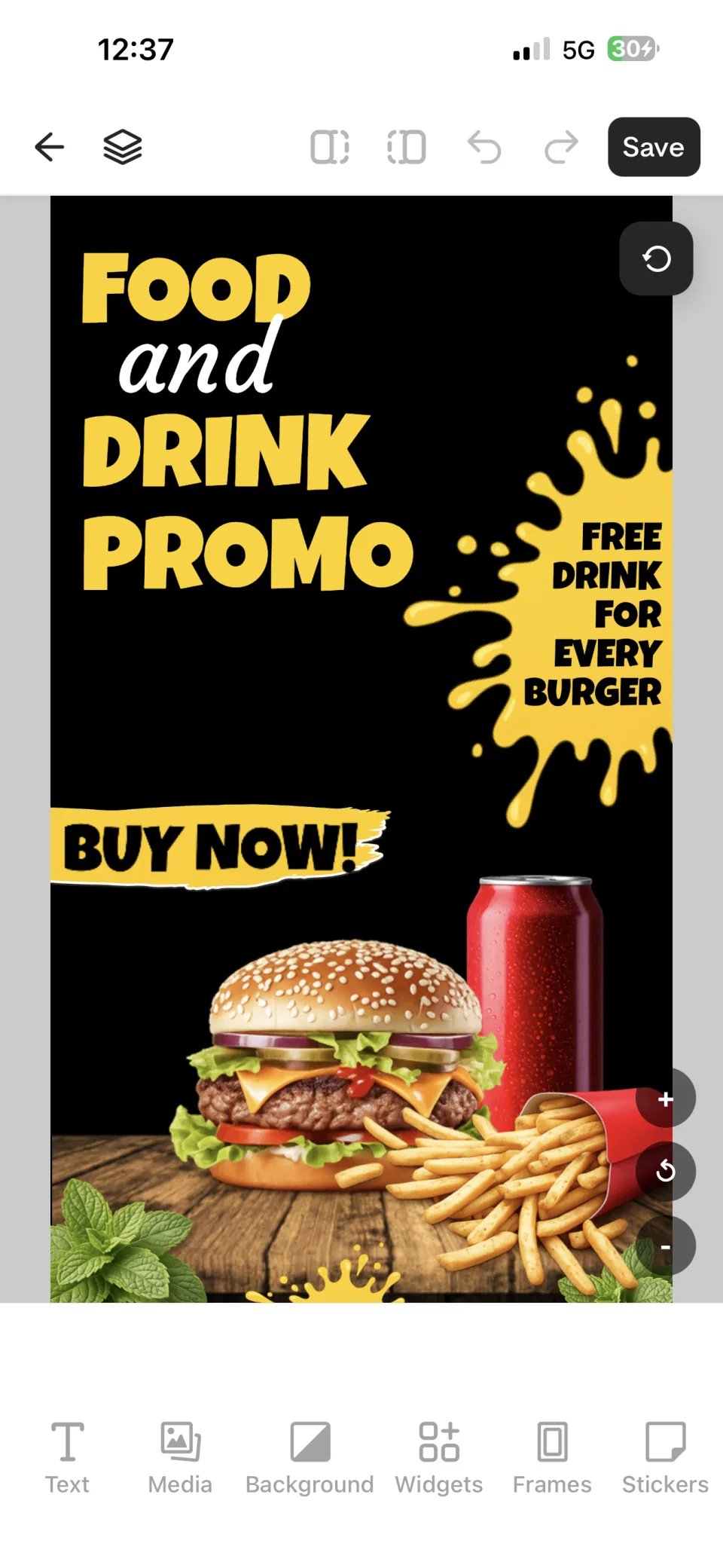
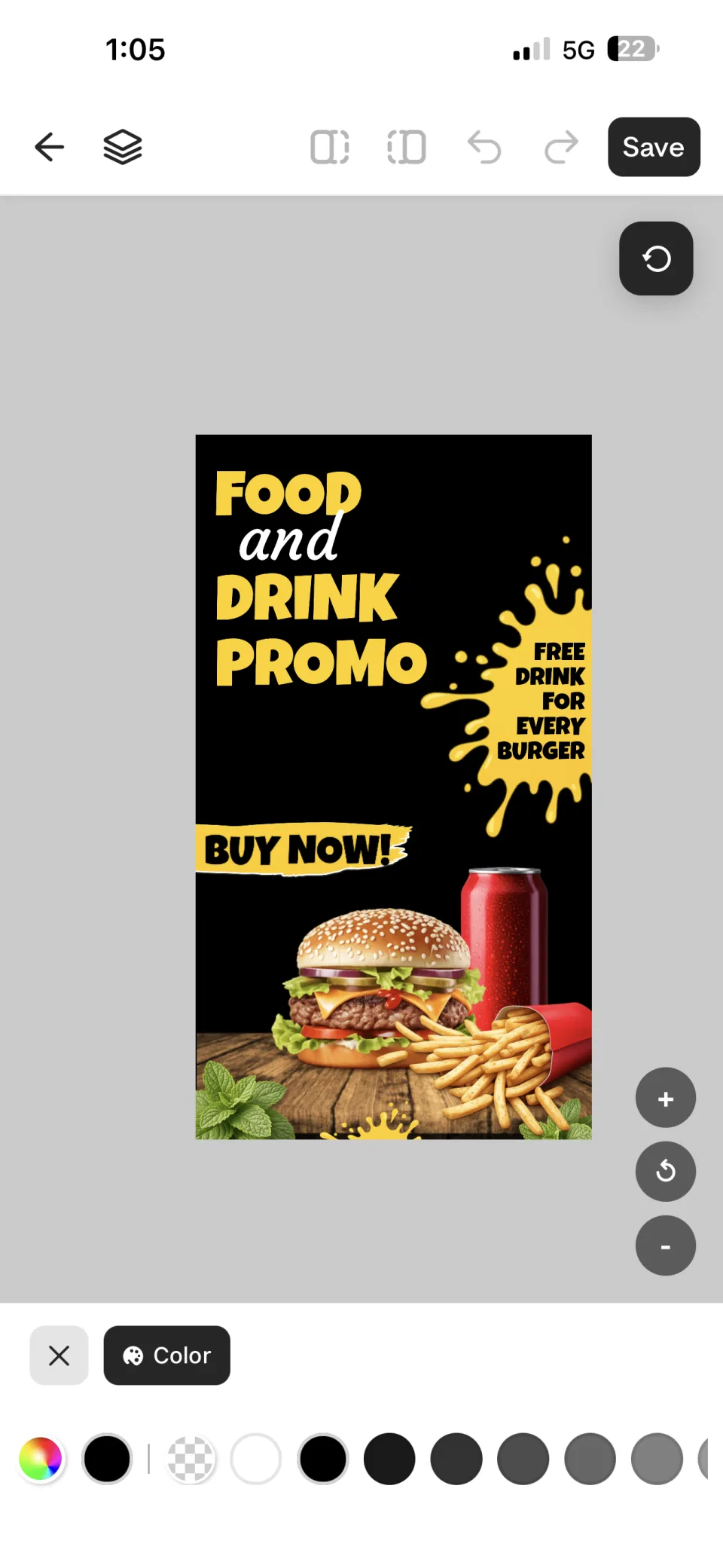
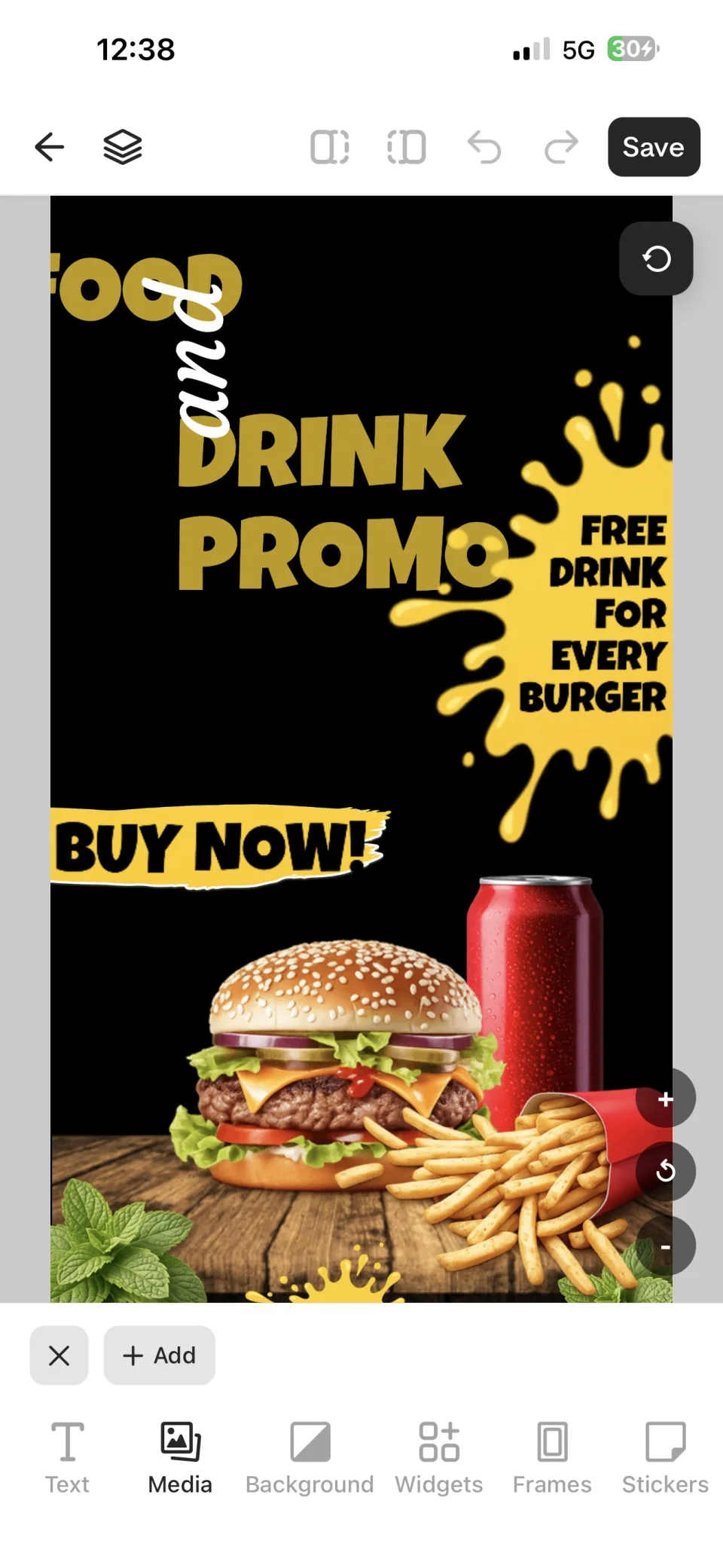
Use the editor to add images, videos, text, frames, stickers, and available widgets. For example, a restaurant could combine a product photo, a price and a short promotion.
Add media
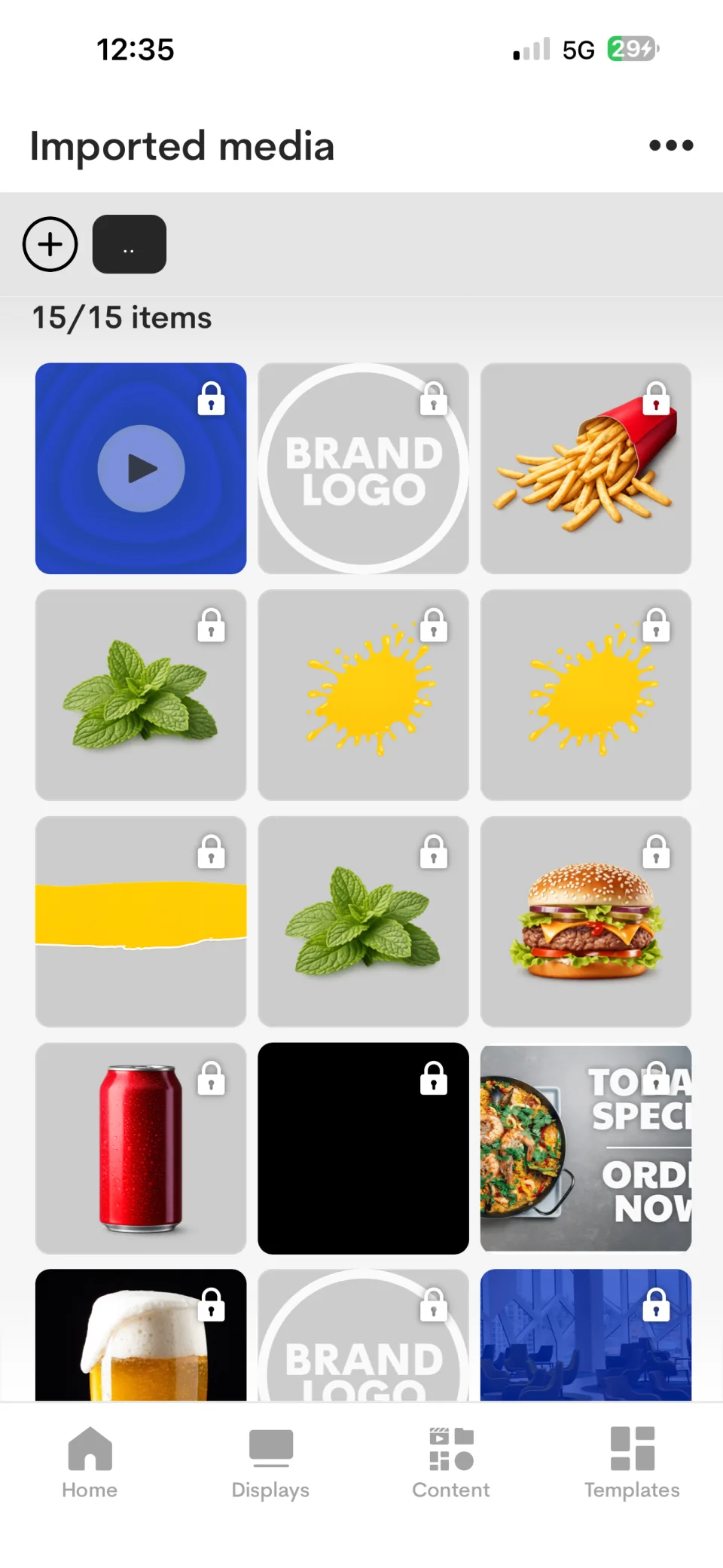
Choose Media in the editor toolbar, then select an imported file or use Add to import a new one.
Add and style text
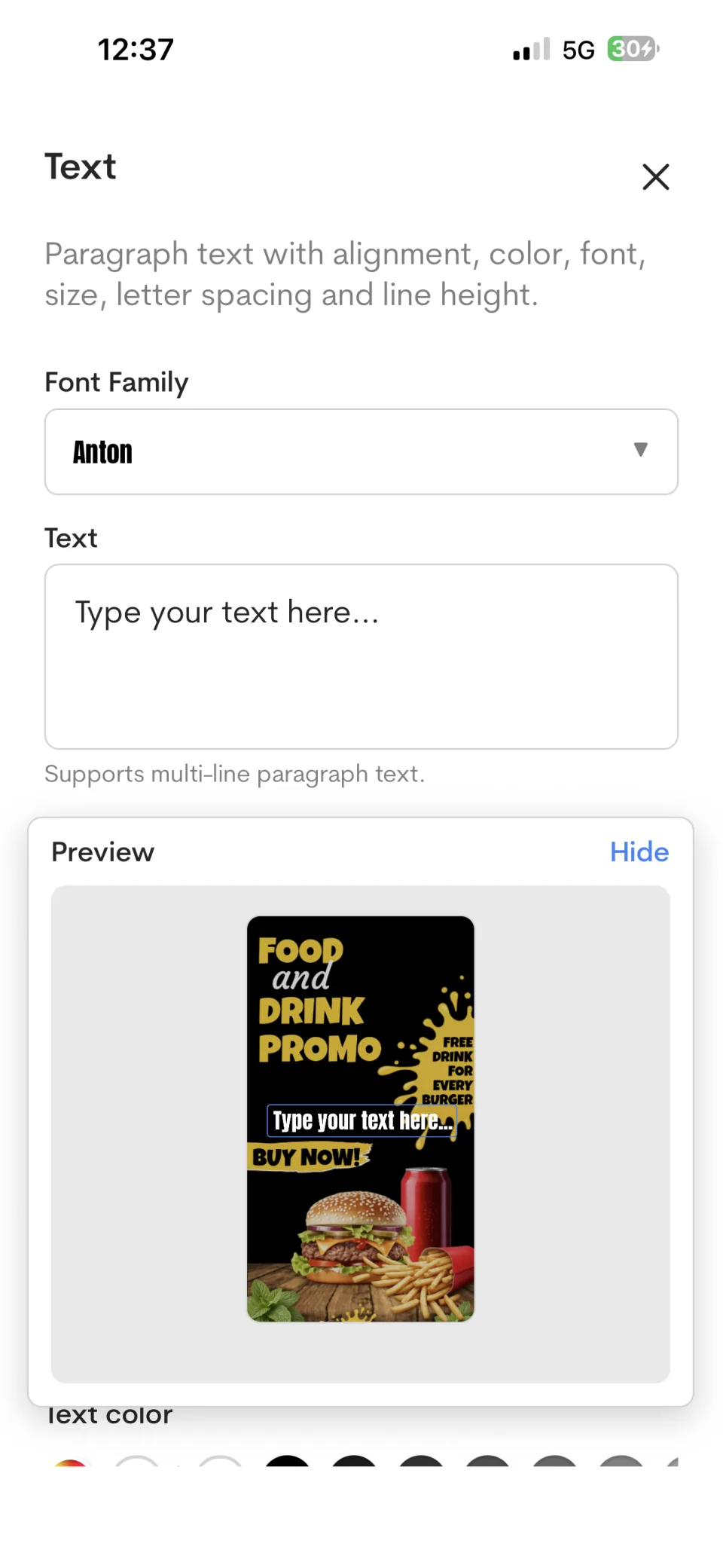
Choose Text, enter your message, and adjust the font, size, spacing, color, gradient, or outline as needed. Use the preview to check legibility.

Add visual elements
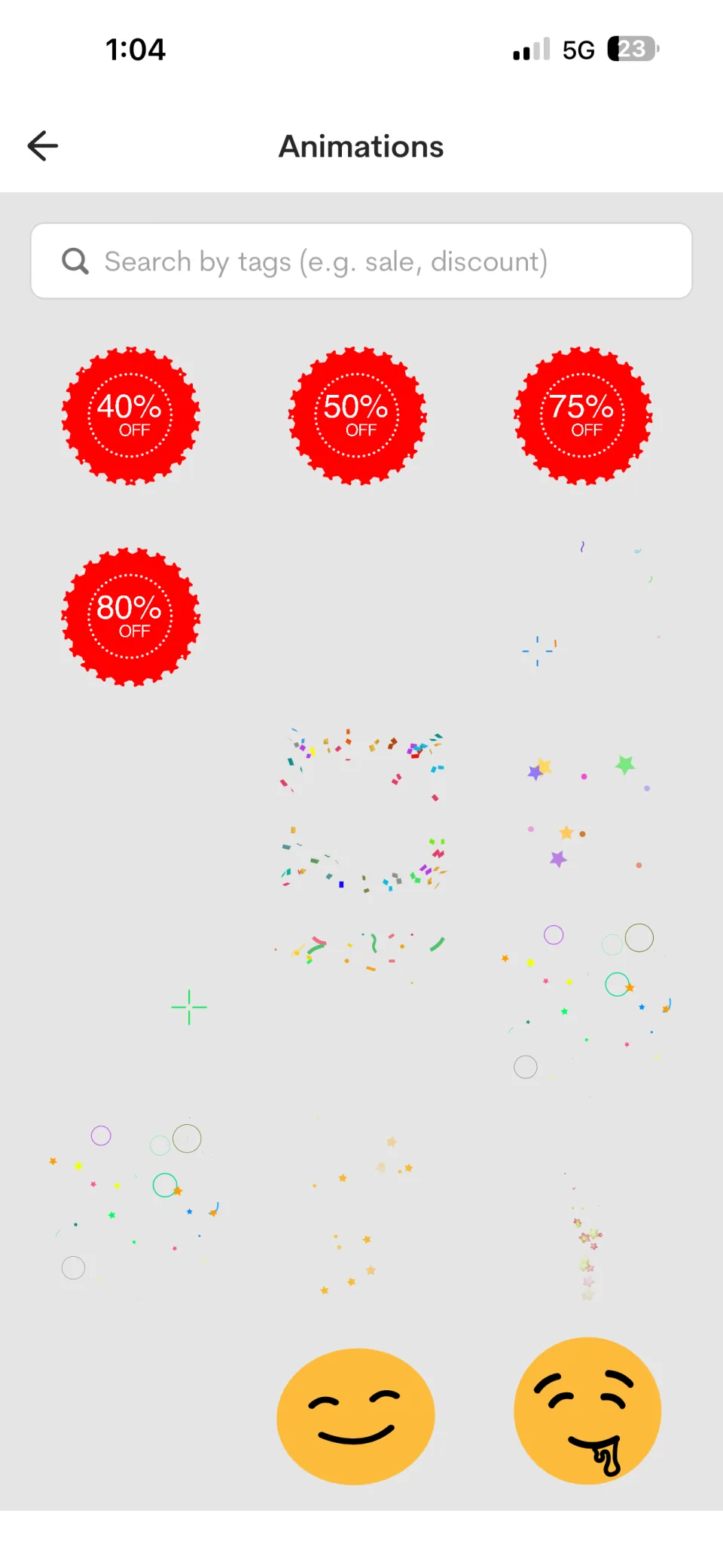
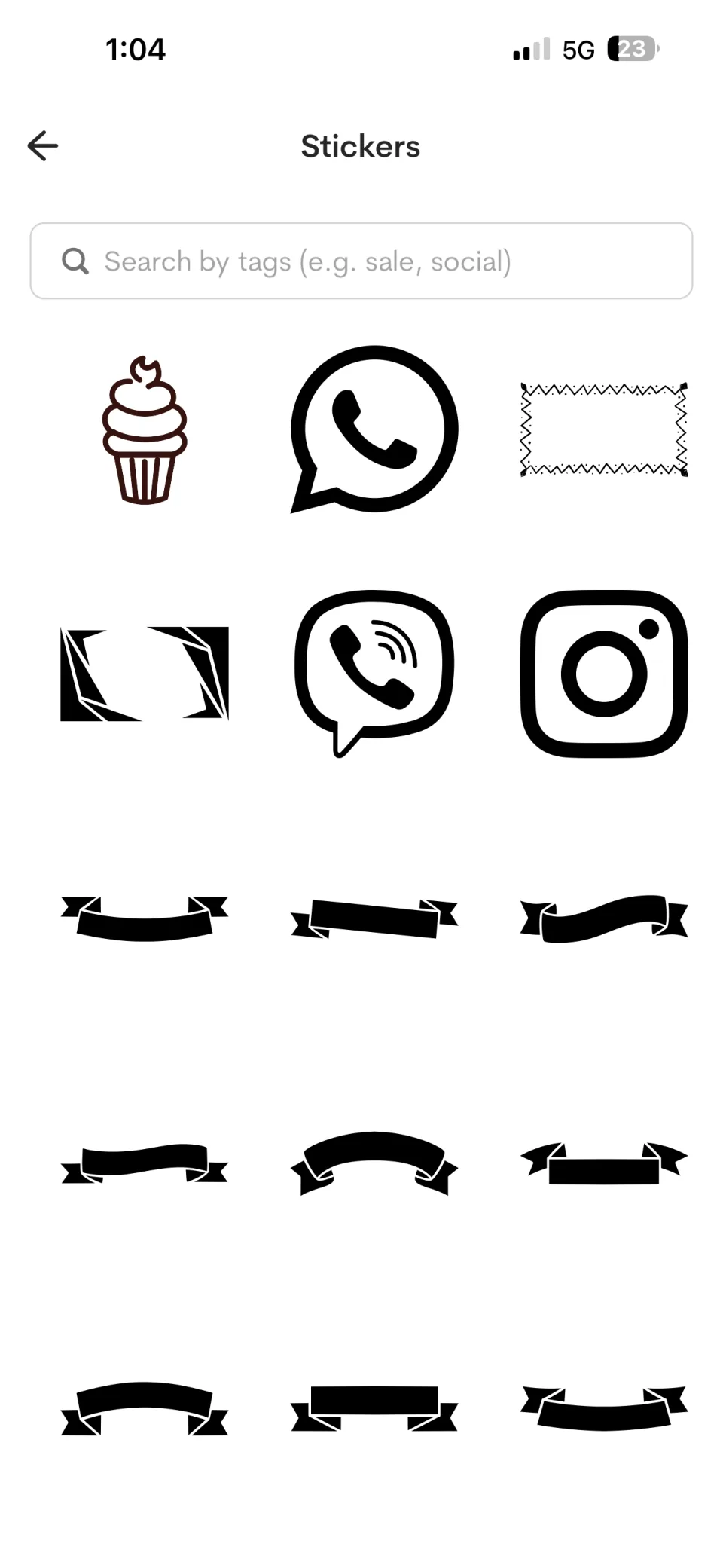
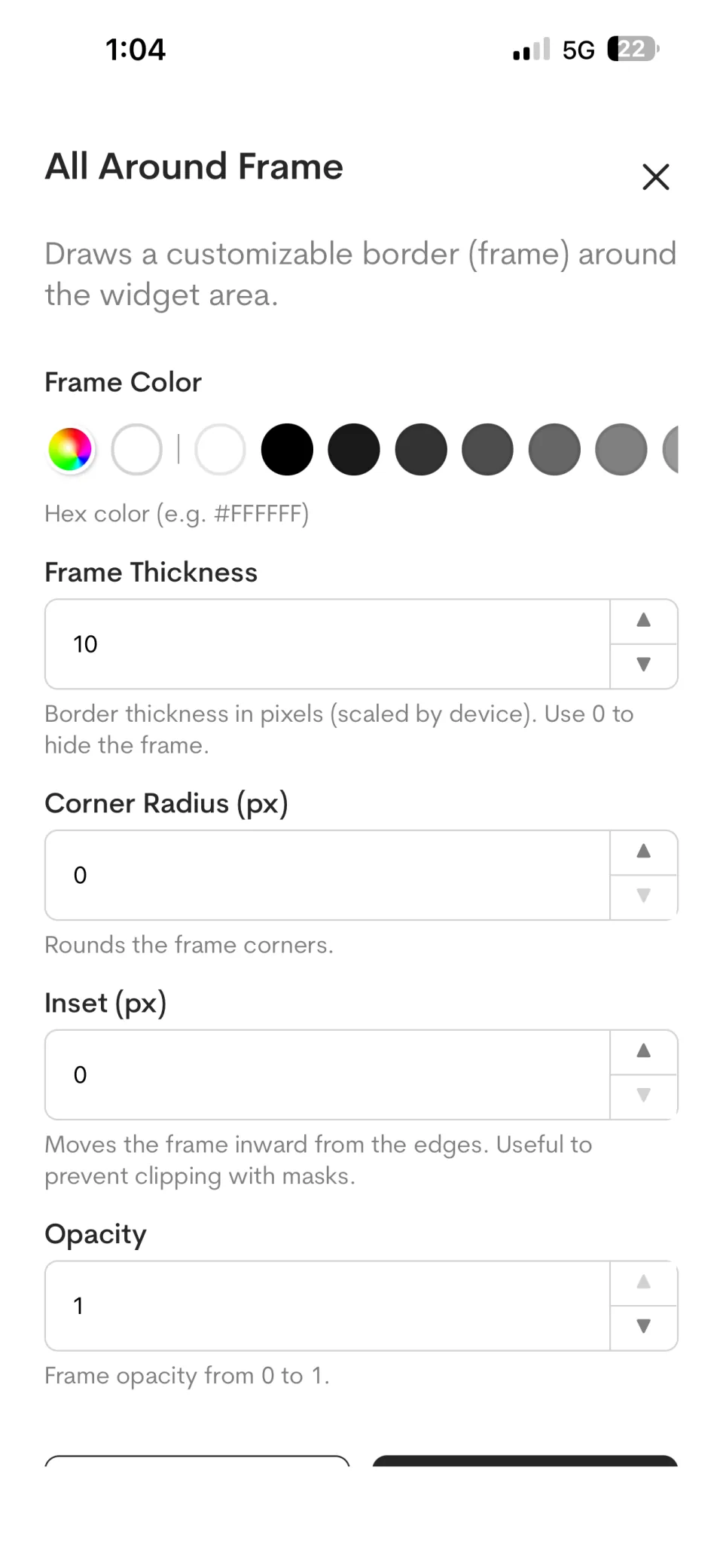
Use Frames to create a border around an area, Stickers for decorative graphics, and Widgets for dynamic elements such as a slideshow, clock, countdown, price tag, website, or QR code.
Arrange layers
Open Layers to review the elements in your design, show or hide an item, lock it, or change its stacking order.
Step 3: Save the advertisement
Review the layout, text legibility and orientation, then save your advertisement. Check that text is readable at the distance customers will view the TV.
Step 4: Add the advertisement to a playlist
Open your playlists, create or select one, add the saved advertisement and adjust its position and duration as needed.
Step 5: Assign the playlist to a TV
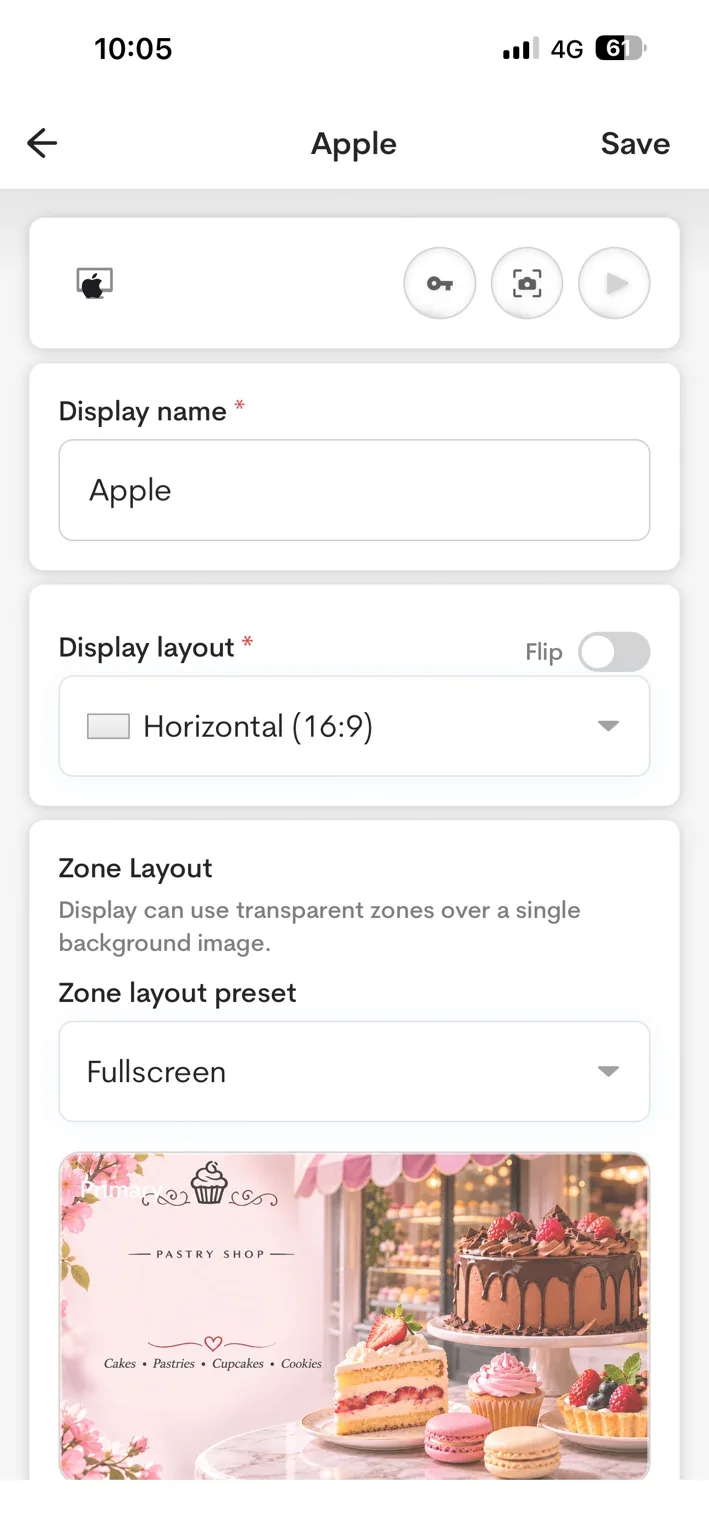
Select the paired display, assign your playlist and start playback. The player handles showing the content on the TV.
Can I manage digital signage without a computer?
Yes. AdCast supports creating and organizing content from a phone and controlling a paired player remotely. You do not need to carry your phone next to the TV during normal playback.
Related articles
- Manage multiple TV screens from your phone
- Playlists and content order
- Mobile digital signage overview
Screenshots show the AdCast mobile workflow. Labels and available controls can vary by app version.
Import and Manage Media
Import photos and videos into AdCast, organize them in folders, and use Canva designs in your digital signage ads.
How to Connect Android TV to AdCast Digital Signage
Install AdCast Player on a compatible Android TV or Android box, pair the display with your account and publish your first playlist.