Getting Started with AdCast Digital Signage
Set up AdCast digital signage, connect an Android TV or Fire TV display, and publish your first playlist.
Getting started
1. Sign in
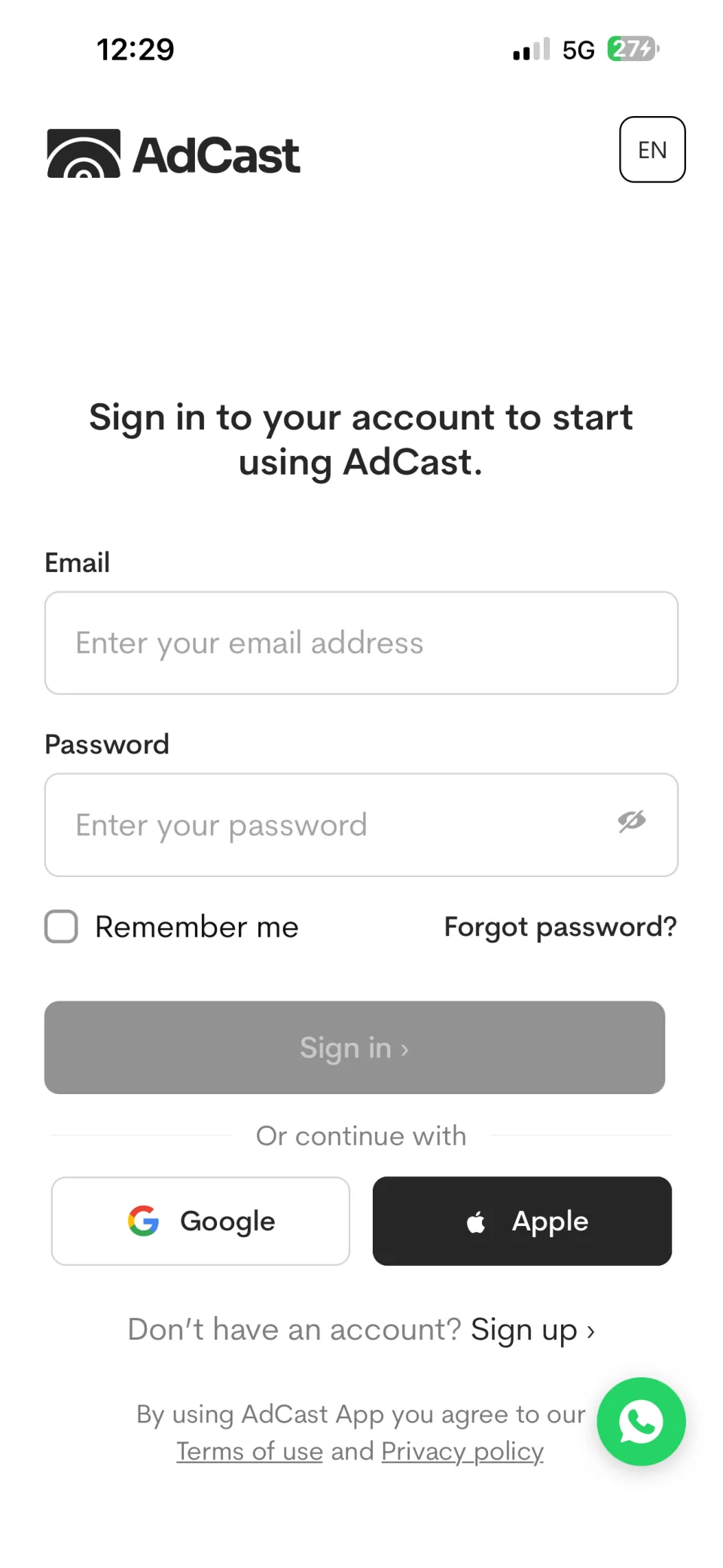
Sign in with your email and password, or choose Google or Apple. If this is your first time, select Sign up.
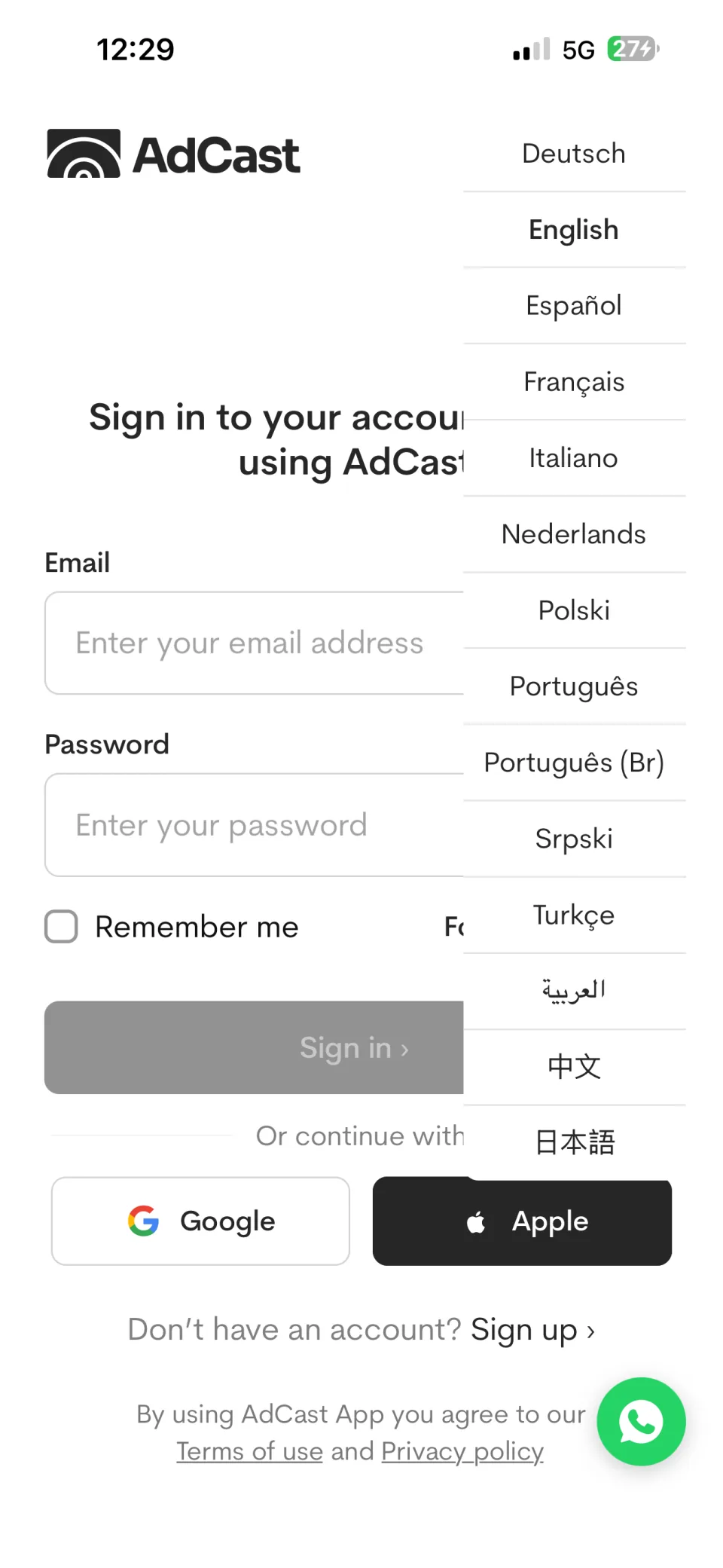
Use the language button in the upper-right corner to select the language you want to use in the app.
2. Connect your first display
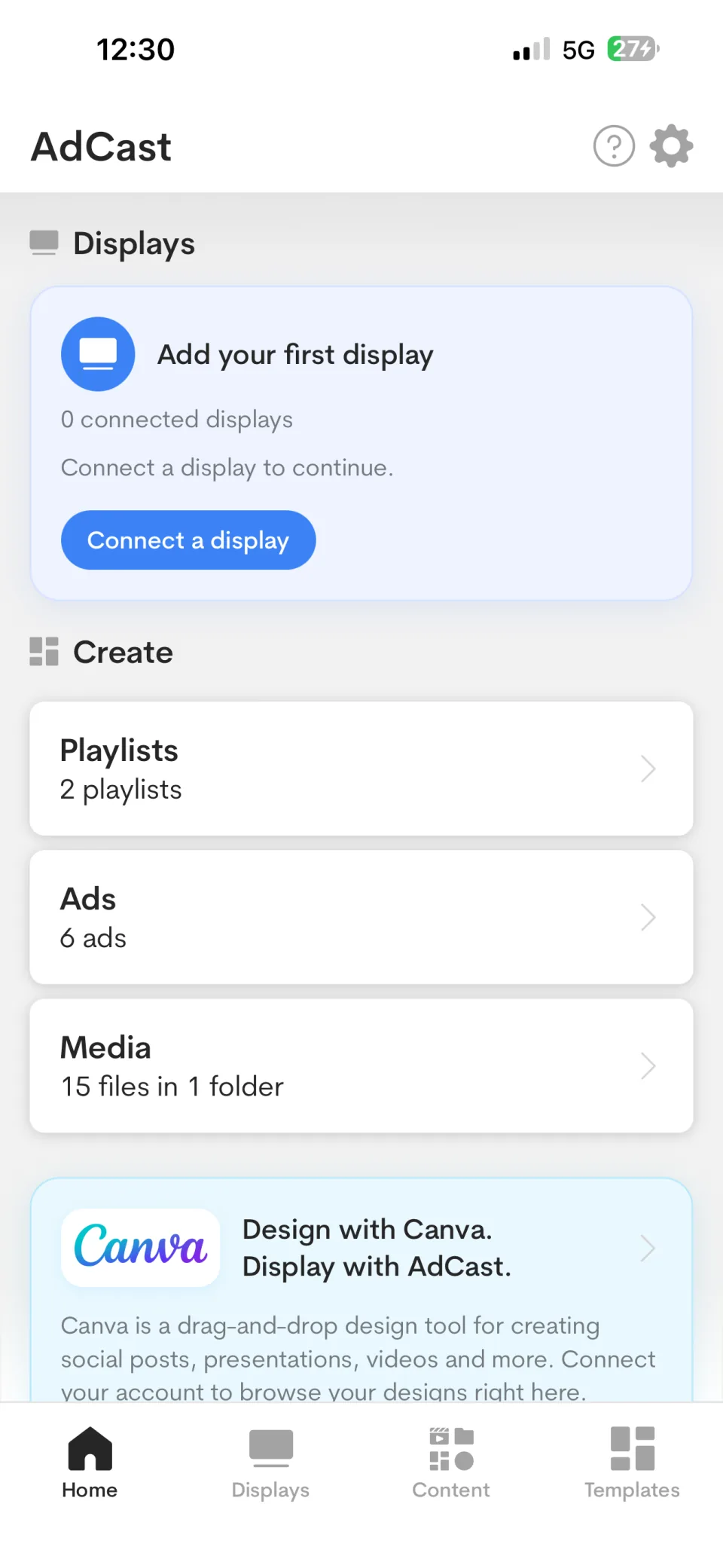
On the Home screen, select Connect a display. Install AdCast Player on a supported screen or open the Web Player, then follow the pairing instructions.
3. Create and publish content
Create an advertisement, add it to a playlist, then assign that playlist to the paired display. Read Create ads on iPhone for the editing workflow.
Next steps
Read Mobile app for the app overview, Media library for importing files, and Displays for pairing and device management.
AdCast Documentation
Learn to create digital signage content on your phone, connect a screen, build playlists, and manage Android TV and Fire TV displays.
Create Digital Signage Ads on Your Phone
Learn how to design ads, add images, videos, text and widgets, and manage digital signage content with the AdCast mobile app.