AdCast Web Player: Digital Signage Player for Any Web Browser
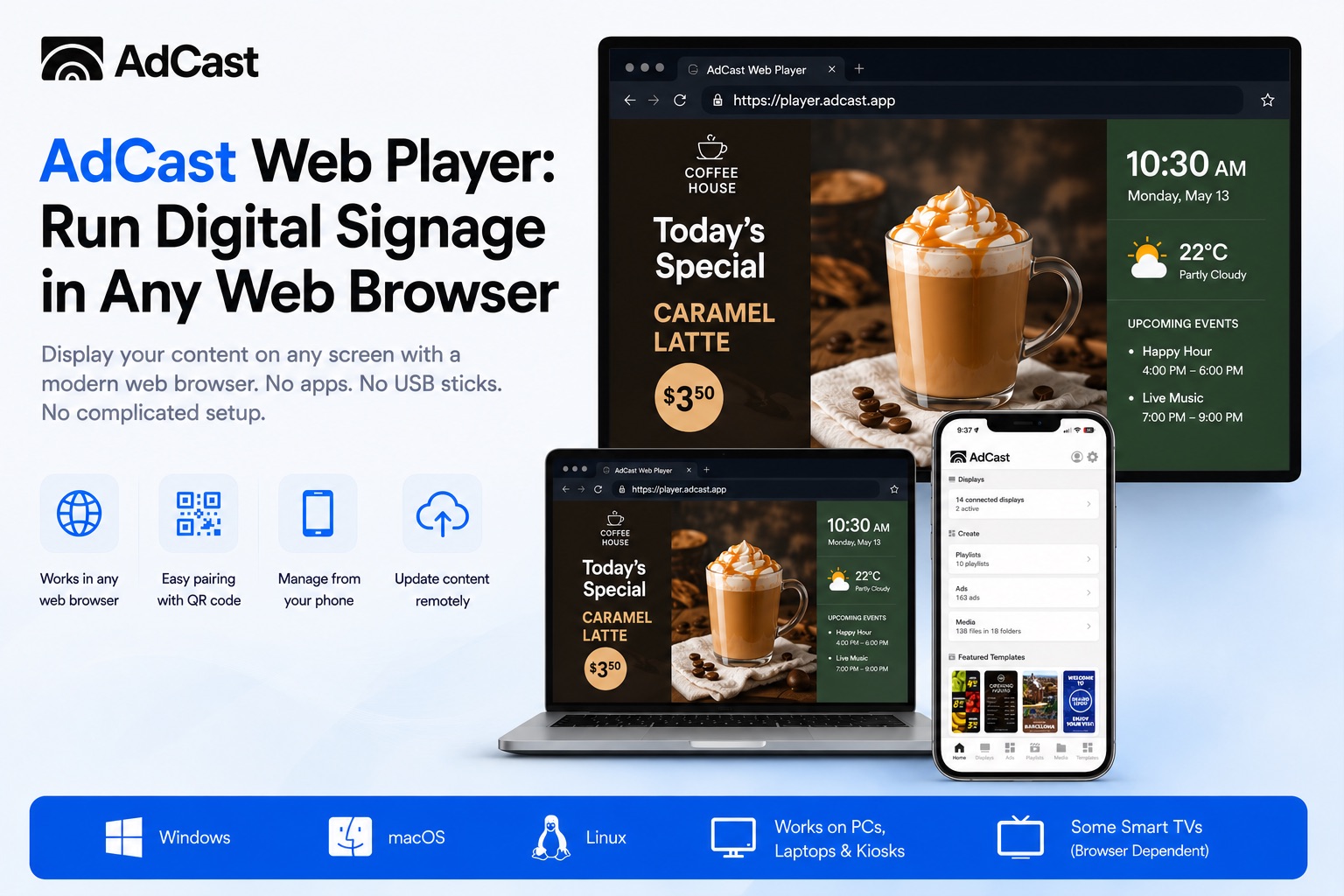
AdCast Web Player: Run Digital Signage in Any Web Browser
AdCast now offers a browser-based player at https://player.adcast.app. This gives businesses another simple way to turn screens, computers, kiosks, and compatible smart TVs into digital signage displays.
Instead of using USB sticks, manually transferring files, or learning a complicated CMS, you can manage playlists, schedules, images, videos, and screen content remotely from the AdCast mobile app. For small businesses, the goal is simple: get professional digital signage running quickly and keep it easy to update.
What Is the AdCast Web Player?
AdCast Web Player is a browser digital signage player that loads directly from https://player.adcast.app. It allows a display to show AdCast content through a compatible web browser, which is useful when a native player app is not the best fit for the device.
Once the screen is paired, you can manage ads, playlists, and schedules from the AdCast mobile app. That makes it a practical option for businesses that want a web based digital signage player without building a technical workflow around it.
Why a Browser-Based Digital Signage Player Matters
A digital signage player for browser use gives businesses more flexibility. Many Windows PCs, Mac computers, Linux devices, mini PCs, browser-based kiosks, and some smart TVs already include a modern browser, so testing and deployment can be faster.
This is especially helpful when app store installation is not available, when a business wants to test signage before installing a native player, or when a kiosk environment is already browser-first. For a small business, fewer installation steps can mean faster rollout and less dependence on IT support.
How to Use AdCast Web Player
Step 1 — Open the Web Player
Open https://player.adcast.app on the browser of the device or screen you want to use for signage.
Step 2 — Pair Your Screen
Use the QR code or pairing flow to connect the browser player to your AdCast account.
Step 3 — Publish Content
Create ads, upload images and videos, build playlists, schedule content, and update the screen remotely from your phone. The goal is to get a screen running in minutes, without USB sticks or manual file transfer.
Best Devices for the Web Player
AdCast Web Player is useful for Windows PCs, Mac computers, Linux computers, mini PCs, browser-based kiosks, tablets used as signage screens, testing environments, and some smart TVs with modern browsers.
Compatibility depends on browser performance, video codec support, device capabilities, autoplay permissions, and fullscreen behavior. Before using a smart TV browser in production, test your playlist on the exact device you plan to deploy.
Web Player vs Native Player Apps
| Feature | AdCast Web Player | Native AdCast Player App |
|---|---|---|
| Installation | Open the web player in a compatible browser. | Install the native player app on a supported platform. |
| Best for | Quick testing, computers, kiosks, mini PCs, and environments where installing an app is difficult. | Dedicated signage playback on Android TV, Fire TV, Apple TV, LG webOS, and supported player devices. |
| Device support | Many devices with modern browser support. | Supported TV, streaming, and signage player platforms. |
| Performance | Depends on browser, device, codec support, and fullscreen behavior. | Designed for deeper platform integration and dedicated playback. |
| Offline support | Depends on browser/device behavior and web player capabilities. | Recommended where offline playback and platform-level reliability are important. |
| Updates | Player improvements can be delivered through the web experience. | Updates are delivered through the native app platform. |
| Setup speed | Very fast when a compatible browser is already available. | Fast for supported devices, with the benefit of native playback. |
| Recommended use | Use for browser-compatible deployments, pilots, kiosks, and flexible testing. | Use for long-term, dedicated digital signage displays where a native app is available. |
Who Should Use the AdCast Web Player?
- Small businesses that want simple digital signage.
- Cafés and restaurants that need fast menu and promotion updates.
- Retail shops, gyms, salons, offices, and waiting rooms.
- Kiosks and reception displays that already run in a browser.
- Businesses using Windows, Mac, or Linux screens.
- Users who want to test AdCast before installing a native player.
For industry examples, see AdCast for restaurants, gyms, and salons. You can also read our guide on how to choose digital signage software.
Important Notes About Browser Playback
Browser-based signage depends on device performance, browser support, video codec support, network stability, autoplay permissions, fullscreen behavior, and power or sleep settings.
For best results, use a reliable modern browser, keep the device awake, enable fullscreen or kiosk mode where possible, and test the playlist before deploying. If you need a dedicated setup on a supported TV platform, a native AdCast Player app may be the better long-term option.
Why AdCast Is Built for Simple Digital Signage
AdCast is built around mobile-first control. You can create ads from your phone, upload images and videos, organize playlists, schedule content, and publish remote updates without using a complex CMS.
The web player adds another deployment option alongside native player apps. That matters for businesses that want digital signage without dedicated hardware in many use cases, clear pricing, and a setup process that feels approachable for non-technical teams.
Comparing platforms? See how AdCast compares with Yodeck and explore the rest of our digital signage comparison pages.
Try AdCast Web Player Today
Open https://player.adcast.app on a compatible browser, pair your screen, and start managing digital signage from your phone. AdCast makes it easy to launch professional digital signage without USB sticks, complex software, or expensive hardware.
FAQ: AdCast Web Player
What is a browser digital signage player?
A browser digital signage player is software that runs signage content inside a compatible web browser instead of a dedicated native app. It can be useful for computers, kiosks, mini PCs, and other screens that already have a modern browser.
Can I run digital signage in a web browser?
Yes. With AdCast Web Player, you can open the player in a compatible browser, pair the screen, and manage content remotely from the AdCast mobile app. Browser and device capabilities still affect playback quality.
What is the AdCast Web Player?
AdCast Web Player is a web based digital signage player available at https://player.adcast.app. It lets a compatible browser display AdCast playlists, images, videos, and scheduled screen content.
Does AdCast Web Player work on Windows, Mac, and Linux?
AdCast Web Player can be used on Windows, Mac, and Linux computers with a compatible modern browser. Performance depends on the device, browser, video codec support, and network stability.
Can I use a smart TV browser for digital signage?
Some smart TV browsers may work with browser-based digital signage, but compatibility varies. Test your playlist first because smart TV browsers differ in performance, autoplay behavior, fullscreen support, and video codec support.
Is a web player better than a native digital signage app?
A web player is often better for quick testing, computers, kiosks, and environments where app installation is difficult. A native AdCast Player app is usually better for dedicated playback on Android TV, Fire TV, Apple TV, LG webOS, and devices where deeper platform integration matters.
Do I need special hardware for AdCast Web Player?
No dedicated signage player is required for many web player use cases. You need a compatible device, a reliable browser, and a screen that can stay awake and run in fullscreen or kiosk mode where possible.
Can I manage the web player from my phone?
Yes. After pairing the browser player to your AdCast account, you can create ads, upload images and videos, build playlists, schedule content, and update the screen remotely from the AdCast mobile app.
You might also like
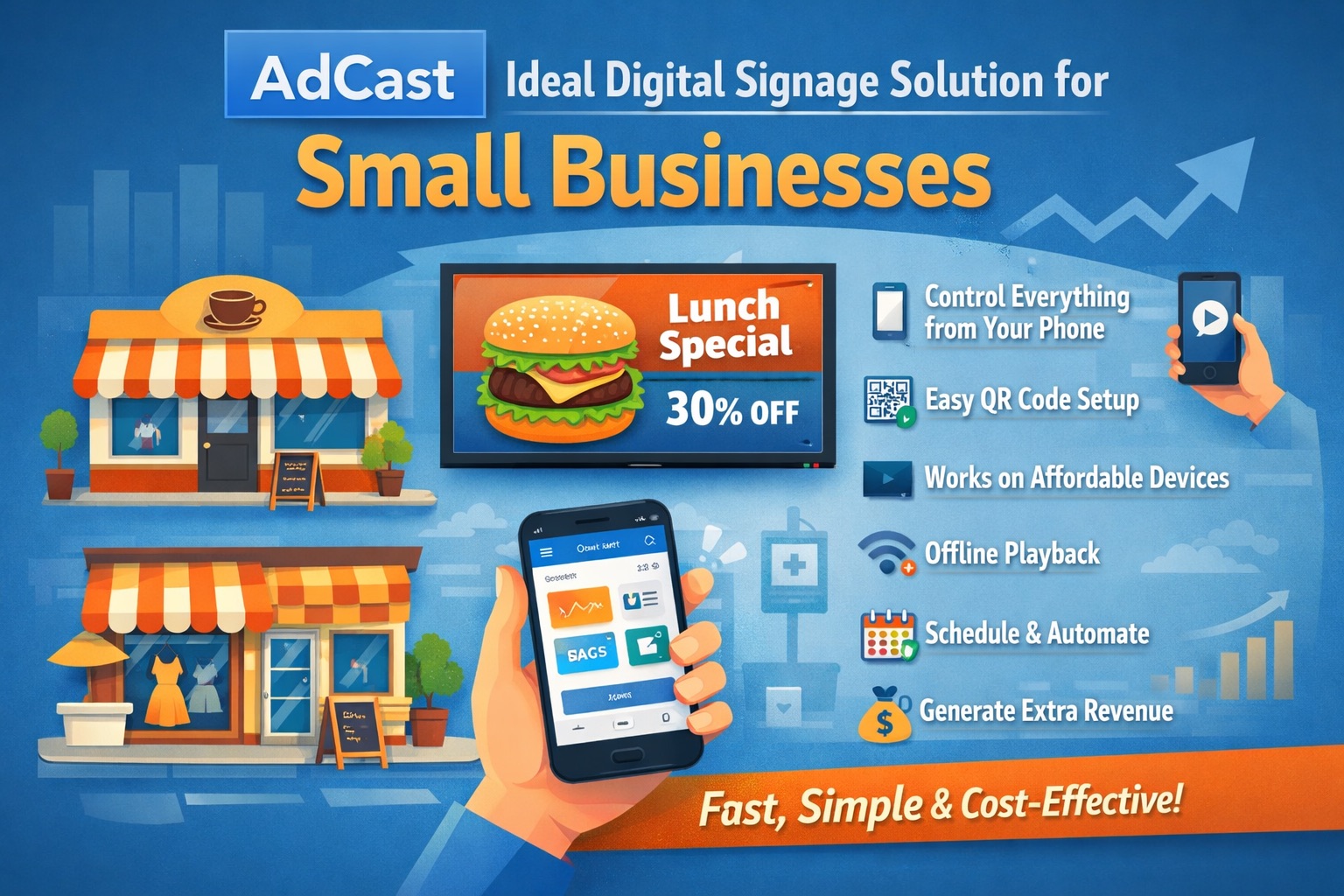
How to Choose the Right Digital Signage Software for Your Business
A practical guide to evaluating digital signage platforms — covering must-have features, ROI benchmarks by industry, and a step-by-step deployment checklist.
Read More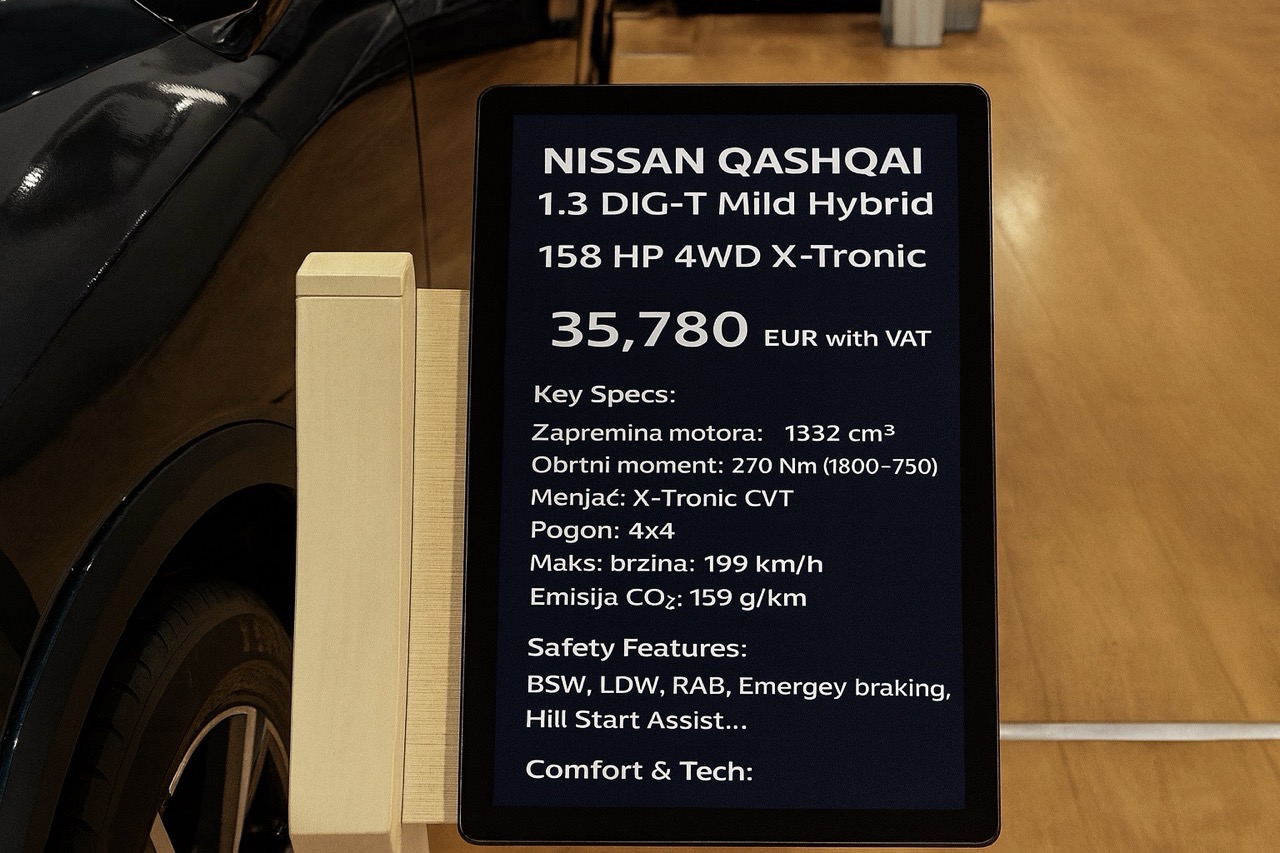
Why Car Expos Should Replace A4 Paper Sheets with Smart Digital Displays
How digital tablet stands and QR-powered interactions can modernize car expos and help dealers capture more leads.
Read More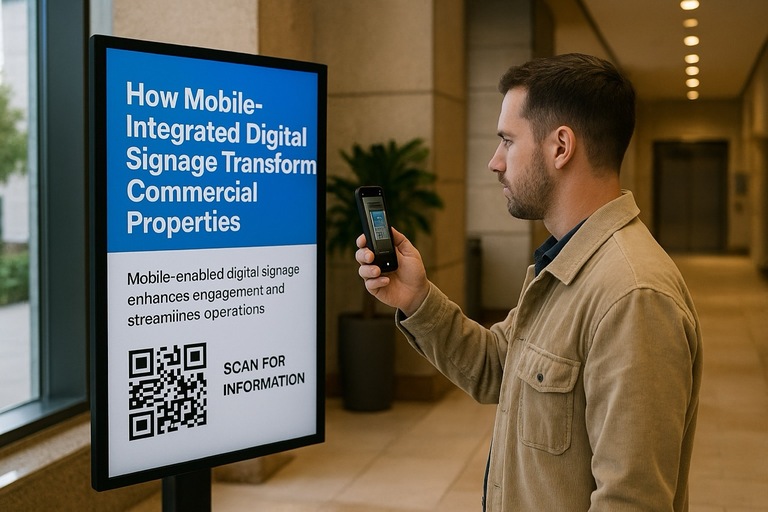
How Mobile-Integrated Digital Signage with AdCast Transforms Commercial Properties
Discover how AdCast Digital Signage turns traditional displays into mobile-connected communication hubs that boost tenant engagement and streamline operations.
Read More
AdCast Digital Signage is Now Available on Fire TV & Fire TV Stick
AdCast now runs on all Fire TV devices. Set up your digital signage display in minutes using just your mobile phone.
Read More
Why USB Sticks Are Holding Back Your Digital Signage
The limitations of using USB drives for digital signage and how cloud-based solutions like AdCast offer a better alternative.
Read More
Top 5 Ways Restaurants Can Use Digital Signage
Explore five innovative ways restaurants can leverage digital signage to enhance customer experience and boost sales.
Read More
10 Digital Signage Marketing Strategies to Boost Sales and Engagement
Proven digital signage tactics to grow in-store sales and engagement.
Read More